DiKeeper
A SaaS modular web app to manage users and content (e.g., Revit Families), complemented by a powerful Revit content browser plugin.
Table of contents
Users
Manage users, roles, and permissions within your company.
Manage Users
View user information (name, email, role, modified date, and joined date) in the users’ table.
# Note:
1. Use the searchbox to find a user.
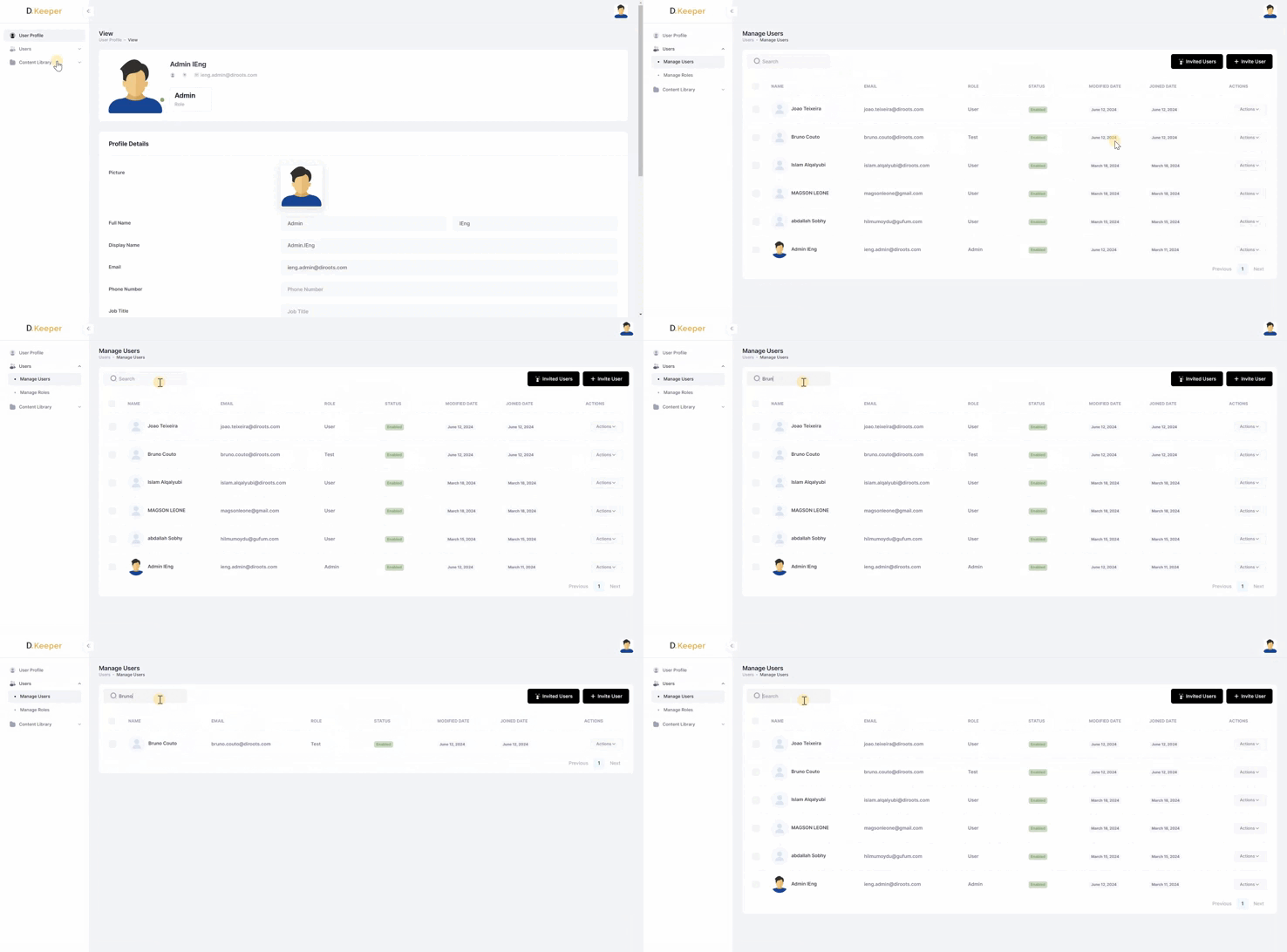
Note: the version on the image may not reflect the latest version of DiKeeper Application.
Actions
In the last column of the table, click on “Actions” button.
Edit User
Select “Edit” to update user information. After editing, click “Submit” to save changes.
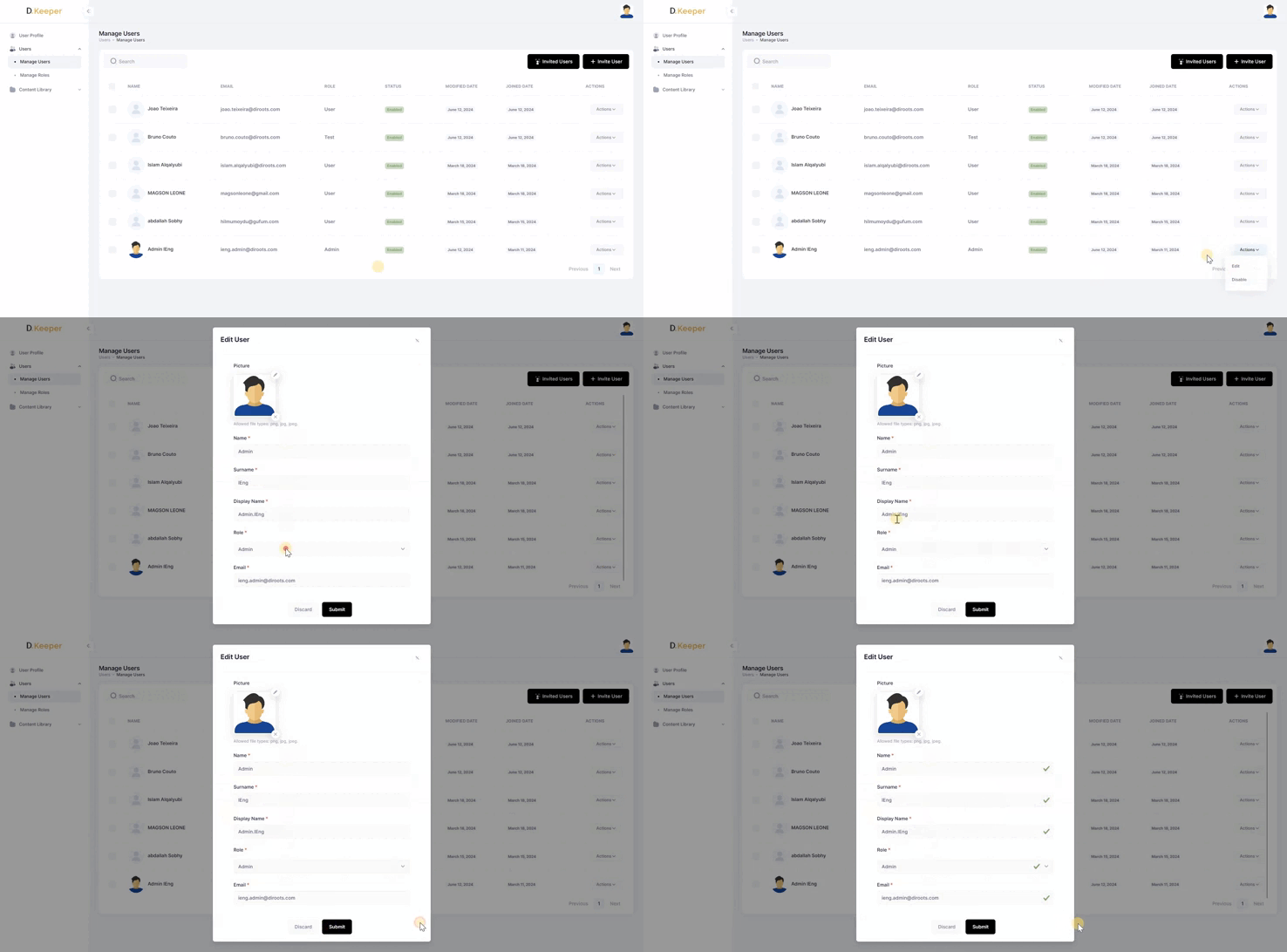
Note: the version on the image may not reflect the latest version of DiKeeper Application.
Delete
- Use the checkbox to select one or multiple users and click “Delete Selected” to remove them.
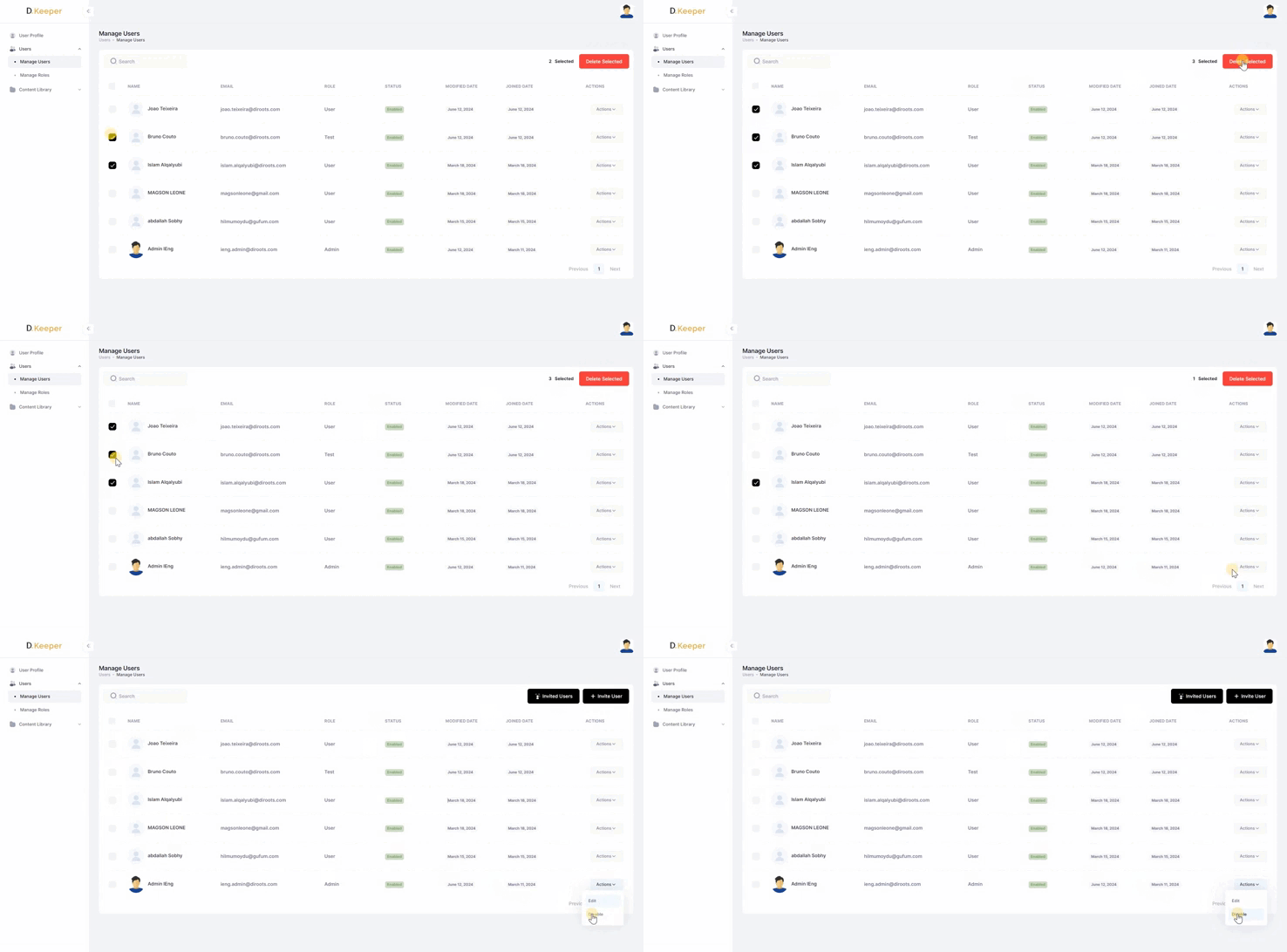
Note: the version on the image may not reflect the latest version of DiKeeper Application.
# Note:
Ensure you have admin rights or the necessary permissions to edit or remove users.
Invite User
Invite a new user by clicking “Invite User.” Enter their email address and select the appropriate role.
# Note:
The user will receive an email invitation to join.
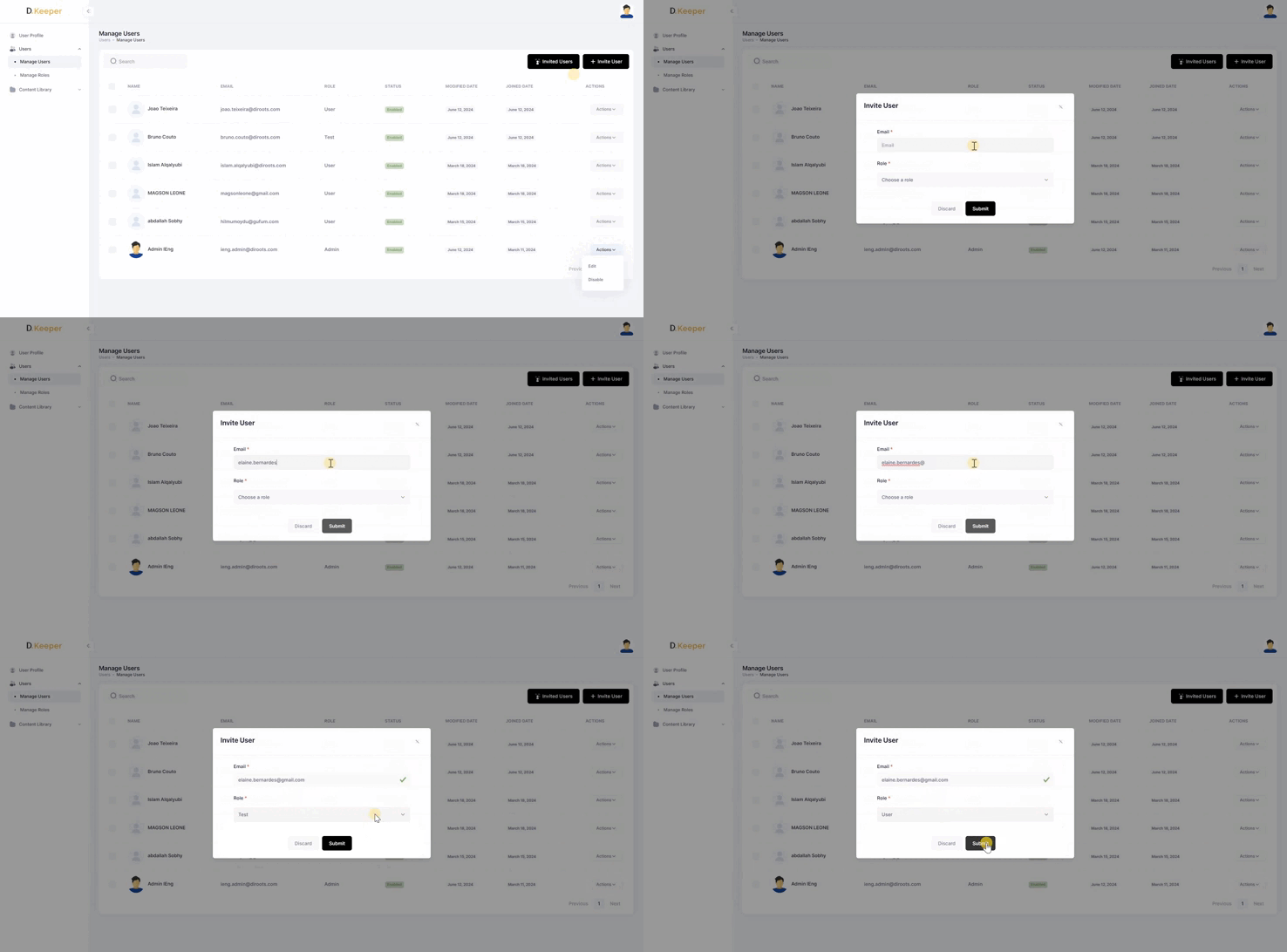
Note: the version on the image may not reflect the latest version of DiKeeper Application.
Invited Users
Manage sent invitations and their statuses by clicking “Invited Users”. Delete invitations by clicking on the “Delete” button.
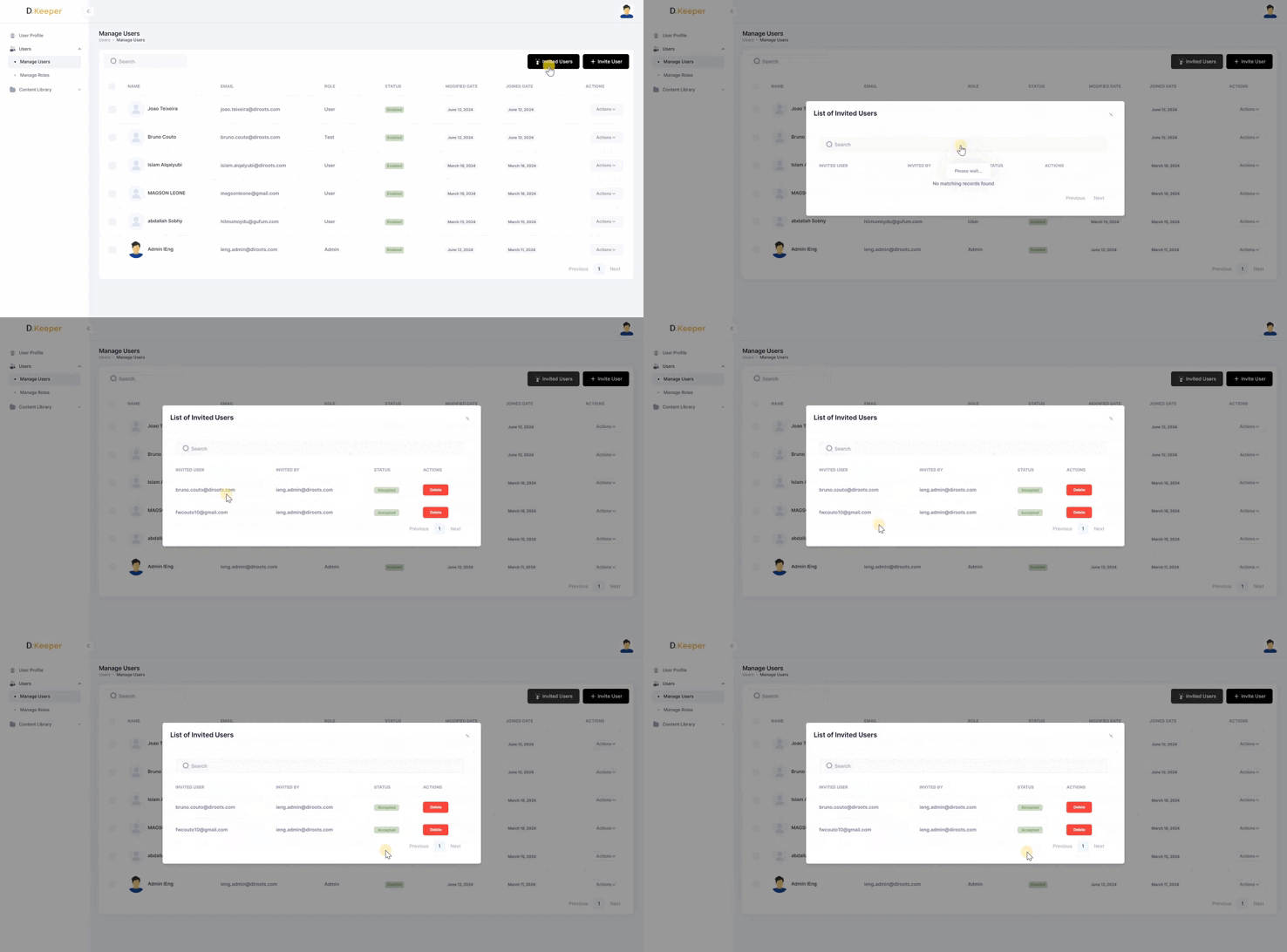
Note: the version on the image may not reflect the latest version of DiKeeper Application.
Manage Roles
Manage user roles within the company. By default, DiKeeper includes predefined Administrator and User roles, which cannot be edited or deleted.
Create/Add new Roles
Create a custom role by clicking “Add Role.”
Enter a name for the new role. Select permissions (View, Create, Edit, Delete) and click “Submit.”
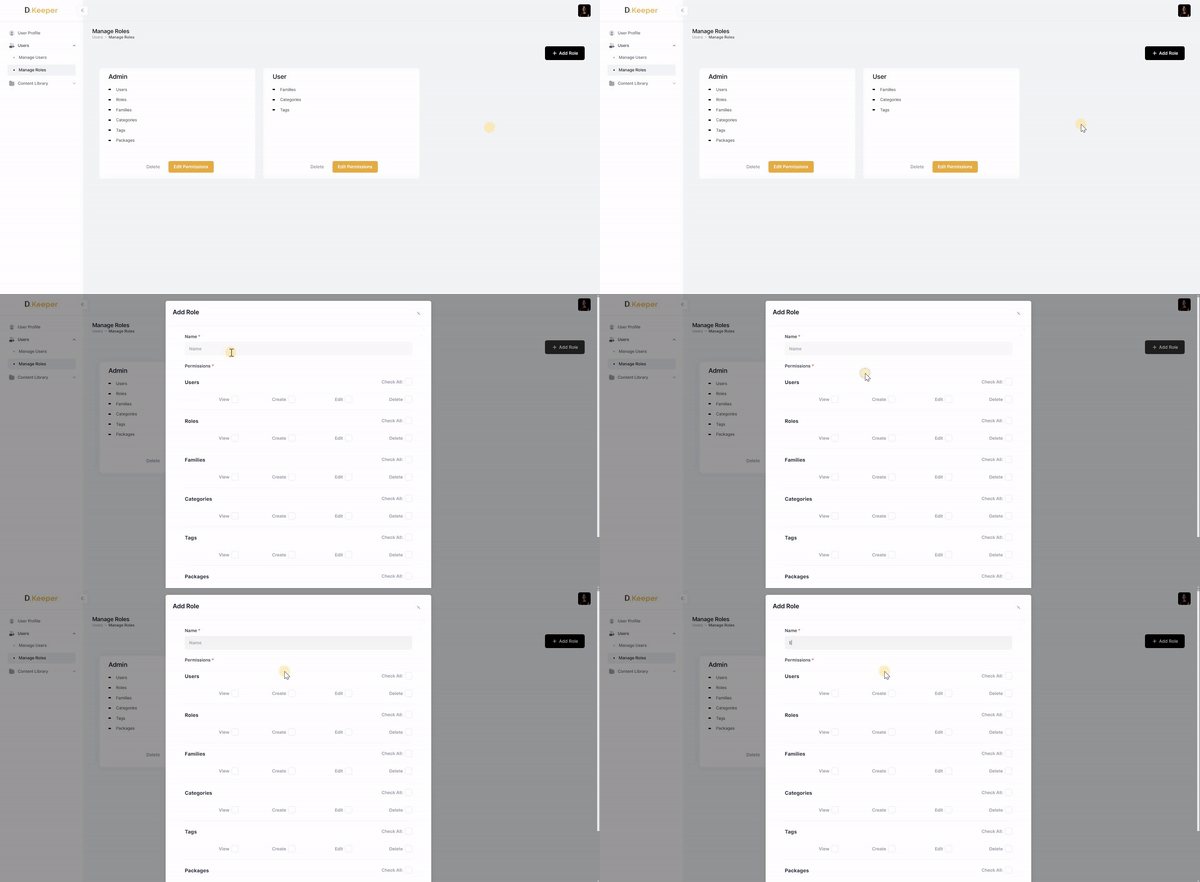
Note: the version on the image may not reflect the latest version of DiKeeper Application.
Edit Role Permissions
Edit custom Roles by clicking the “Edit Permissions” button.
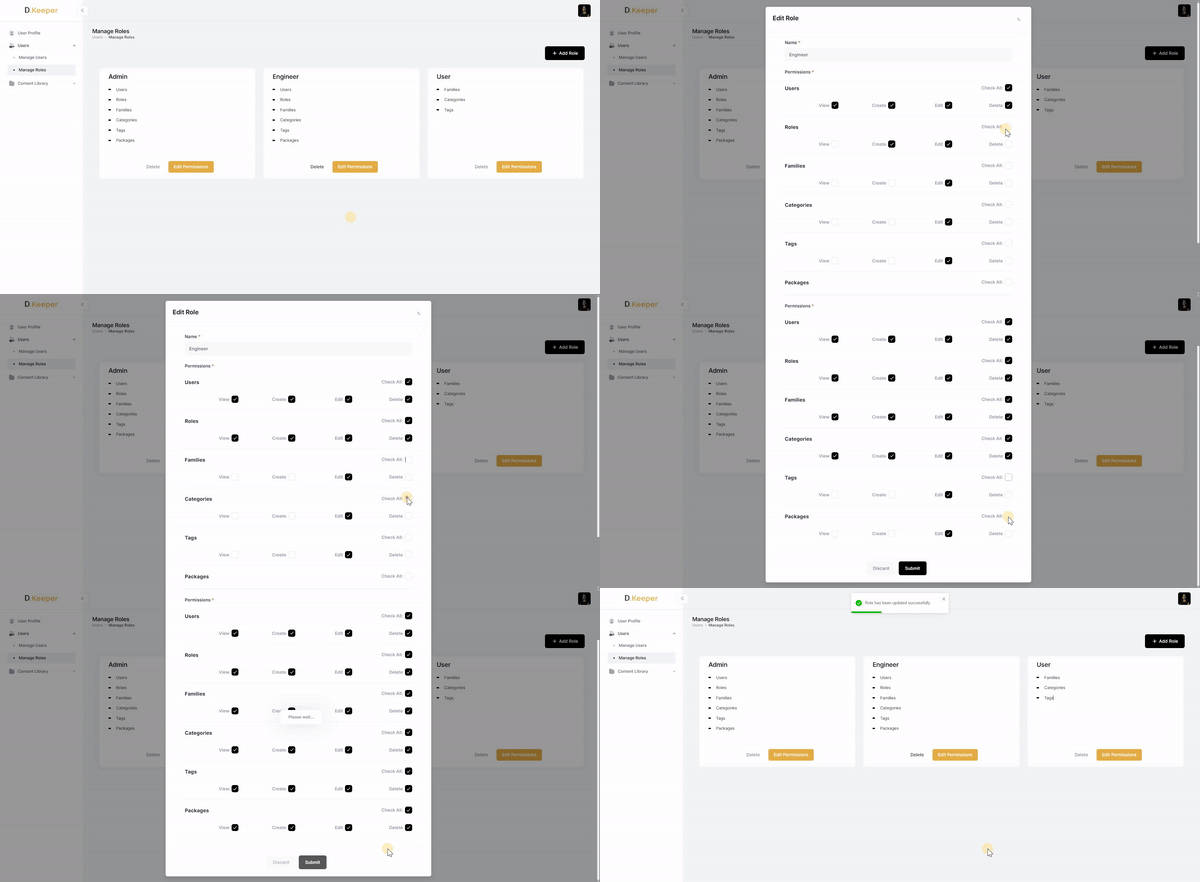
Note: the version on the image may not reflect the latest version of DiKeeper Application.
Delete Roles
Delete custom Roles by clicking the “Delete” button.
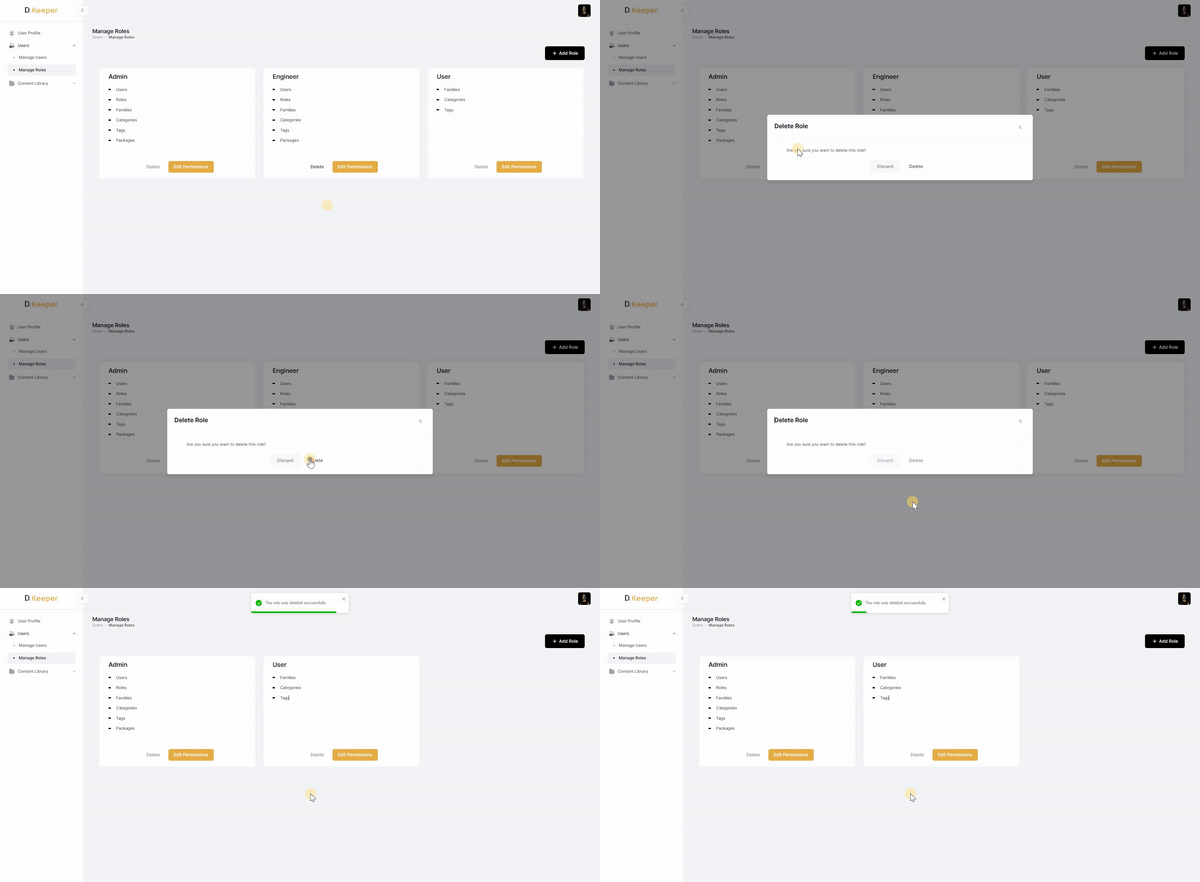
Note: the version on the image may not reflect the latest version of DiKeeper Application.