DiKeeper
A SaaS modular web app to manage users and content (e.g., Revit Families), complemented by a powerful Revit content browser plugin.
Table of contents
Content Library
Families
In this tab you can manage the families of your projects. The families are available in a table with their main information.
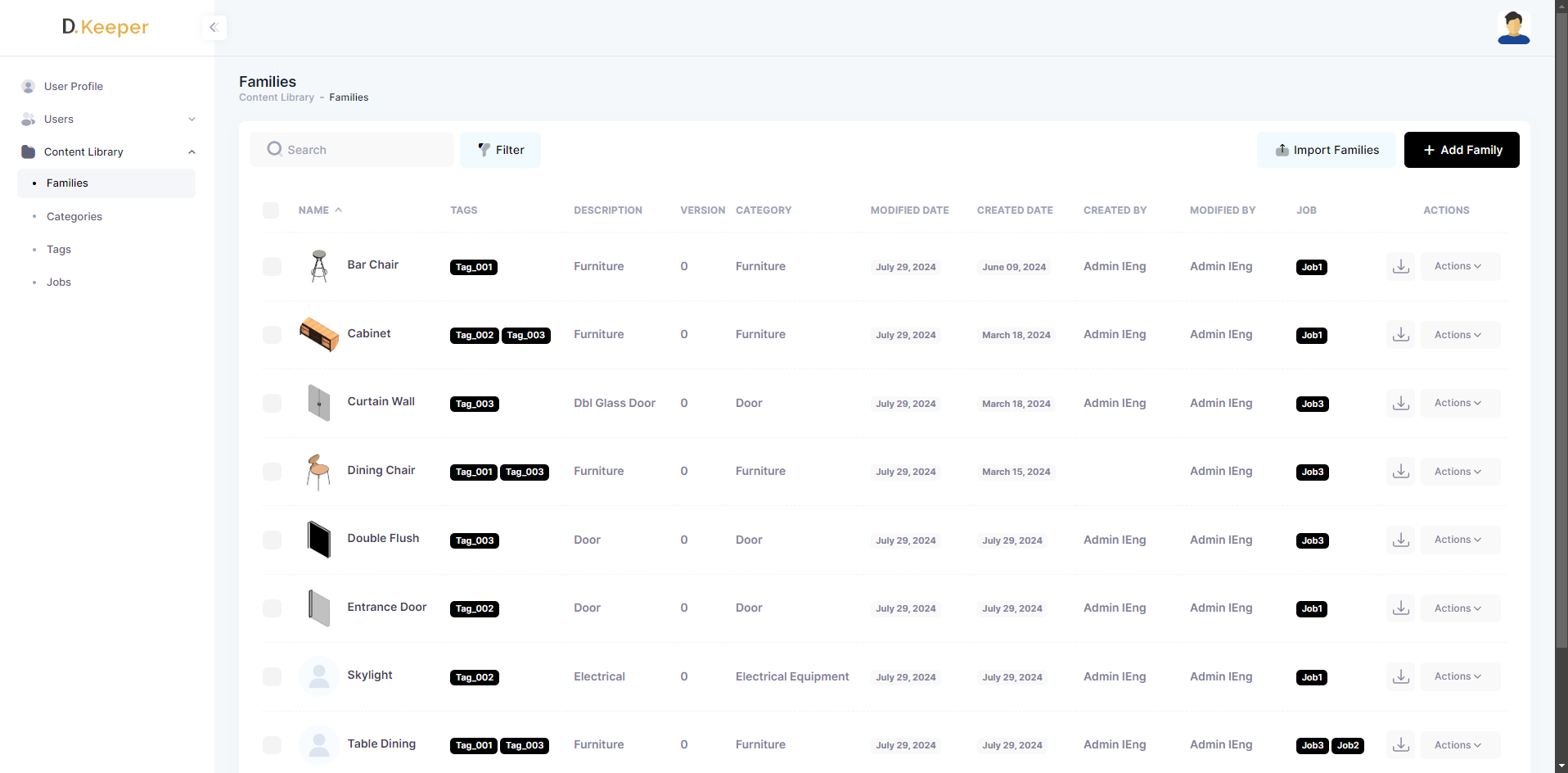
Note: the version on the image may not reflect the latest version of DiKeeper Application.
Search Bar
Use the search bar to search by specifics families.
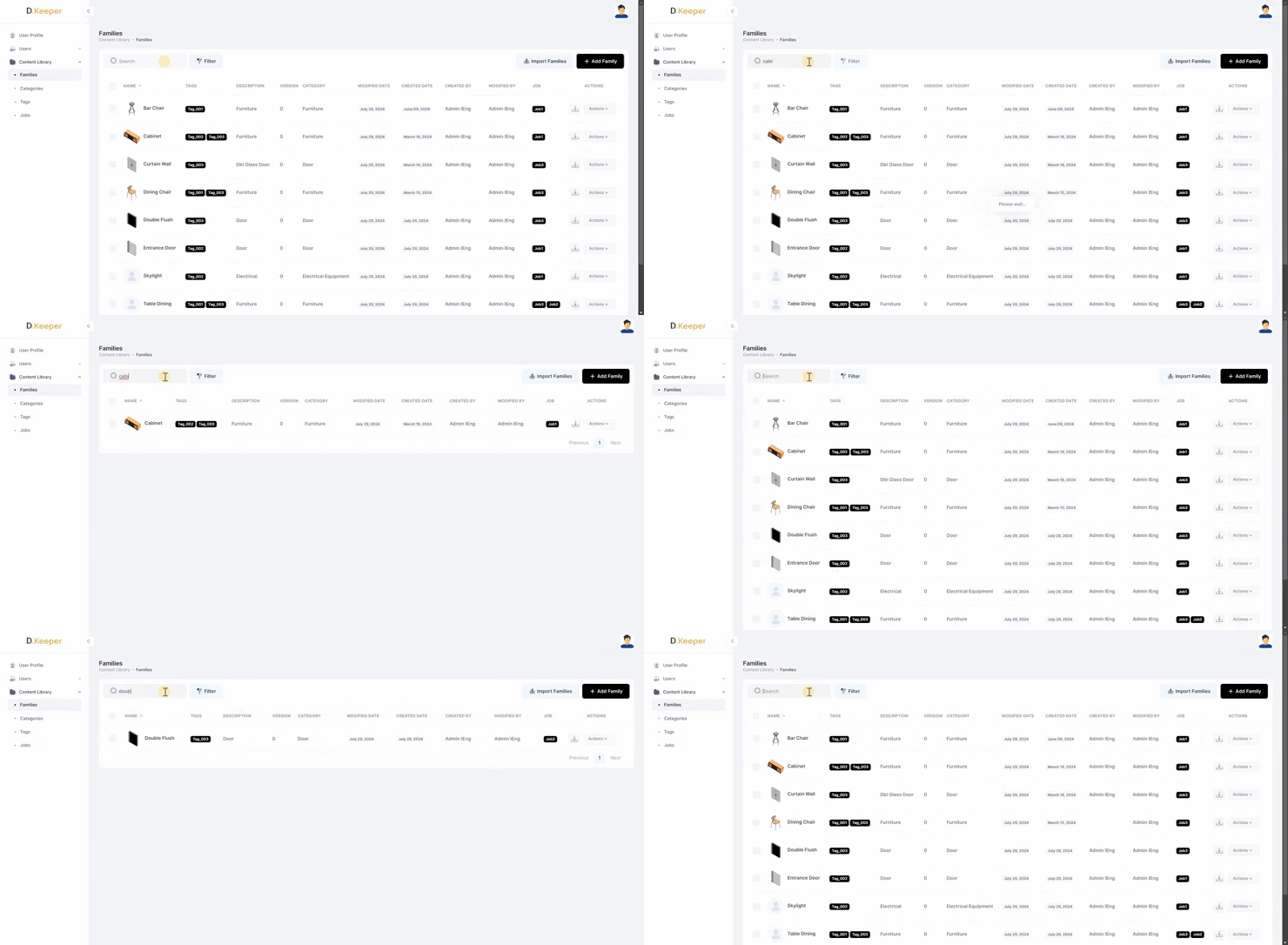
Note: the version on the image may not reflect the latest version of DiKeeper Application.
Filter
Filter families by Category, Tag or Job.
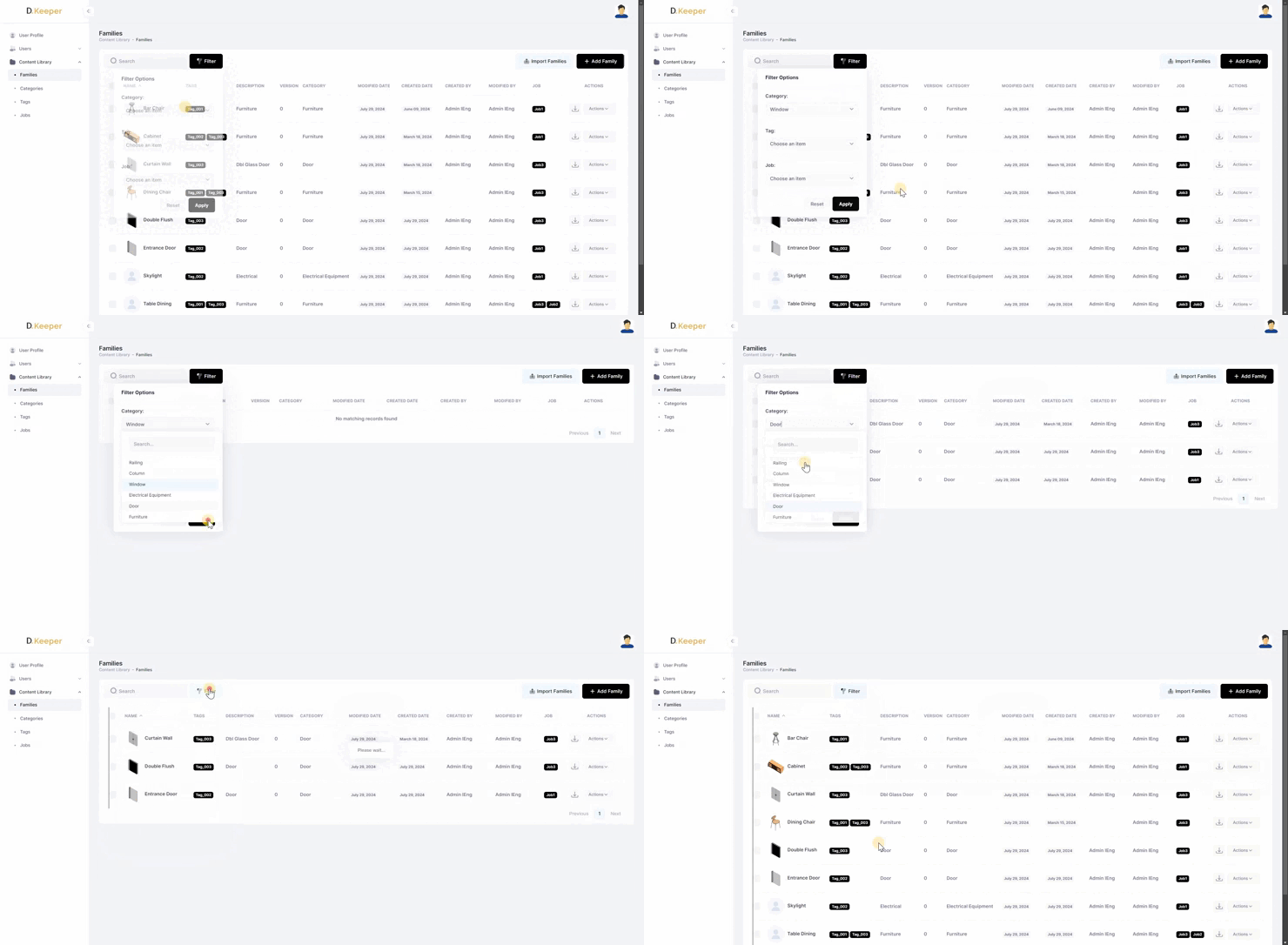
Note: the version on the image may not reflect the latest version of DiKeeper Application.
Import Families
Click on “Import Families” to import from an XLS, XLSX, XLSM, XLSB and .CSV file.
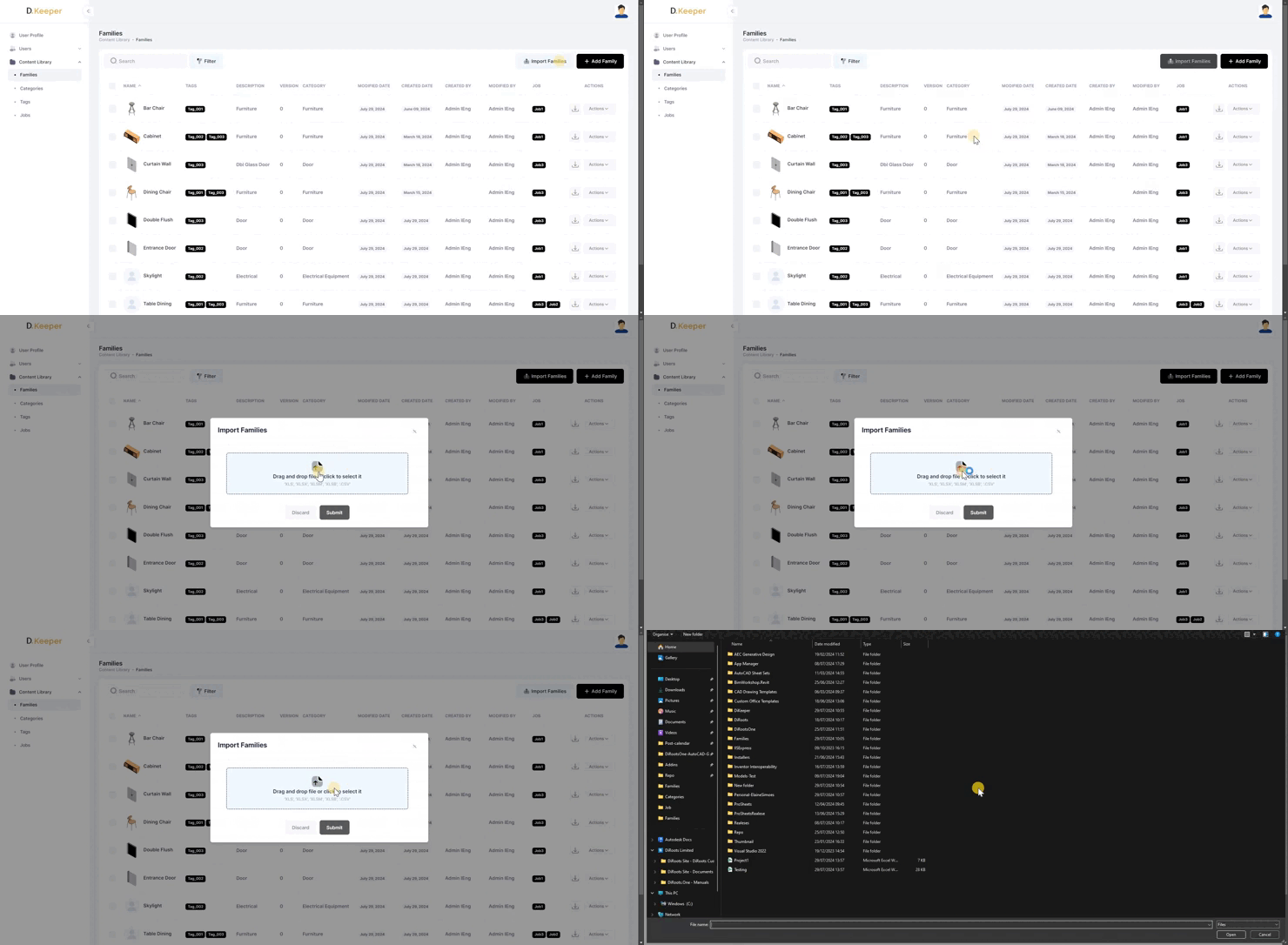
Note: the version on the image may not reflect the latest version of DiKeeper Application.
Add Family
Click to add a new family.
- Add an image (allowed files: png, jpg and jpeg)
- Attach rfa. or txt. file
- Fill all the mandatory fields
- Confirm on “Submit” button.
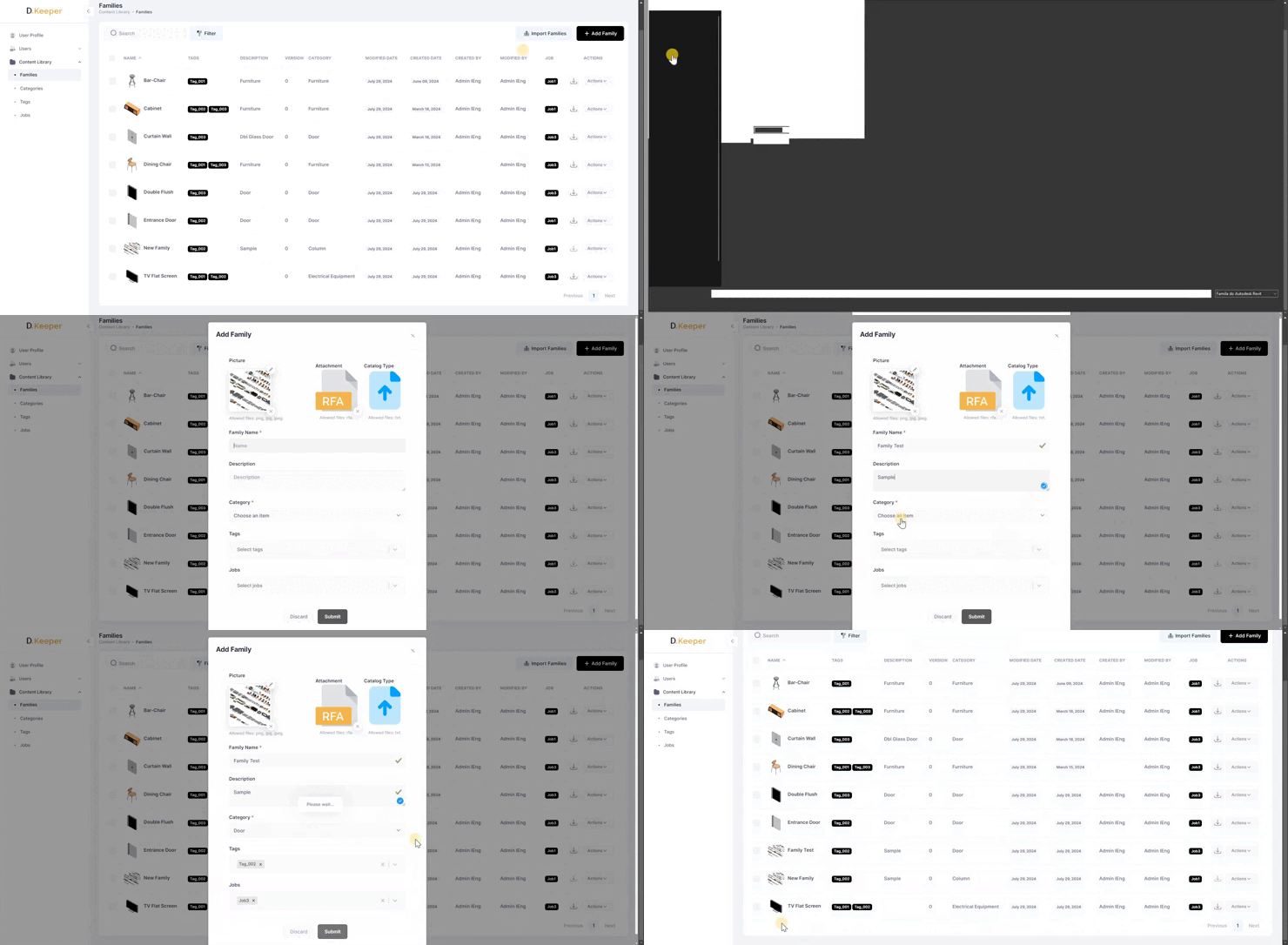
Note: the version on the image may not reflect the latest version of DiKeeper Application.
Edit Family
- Click on the “Actions” button in the last column and select the “Edit” option.
- When you open the Family information, edit the desired fields and click on “Submit” to save the changes.
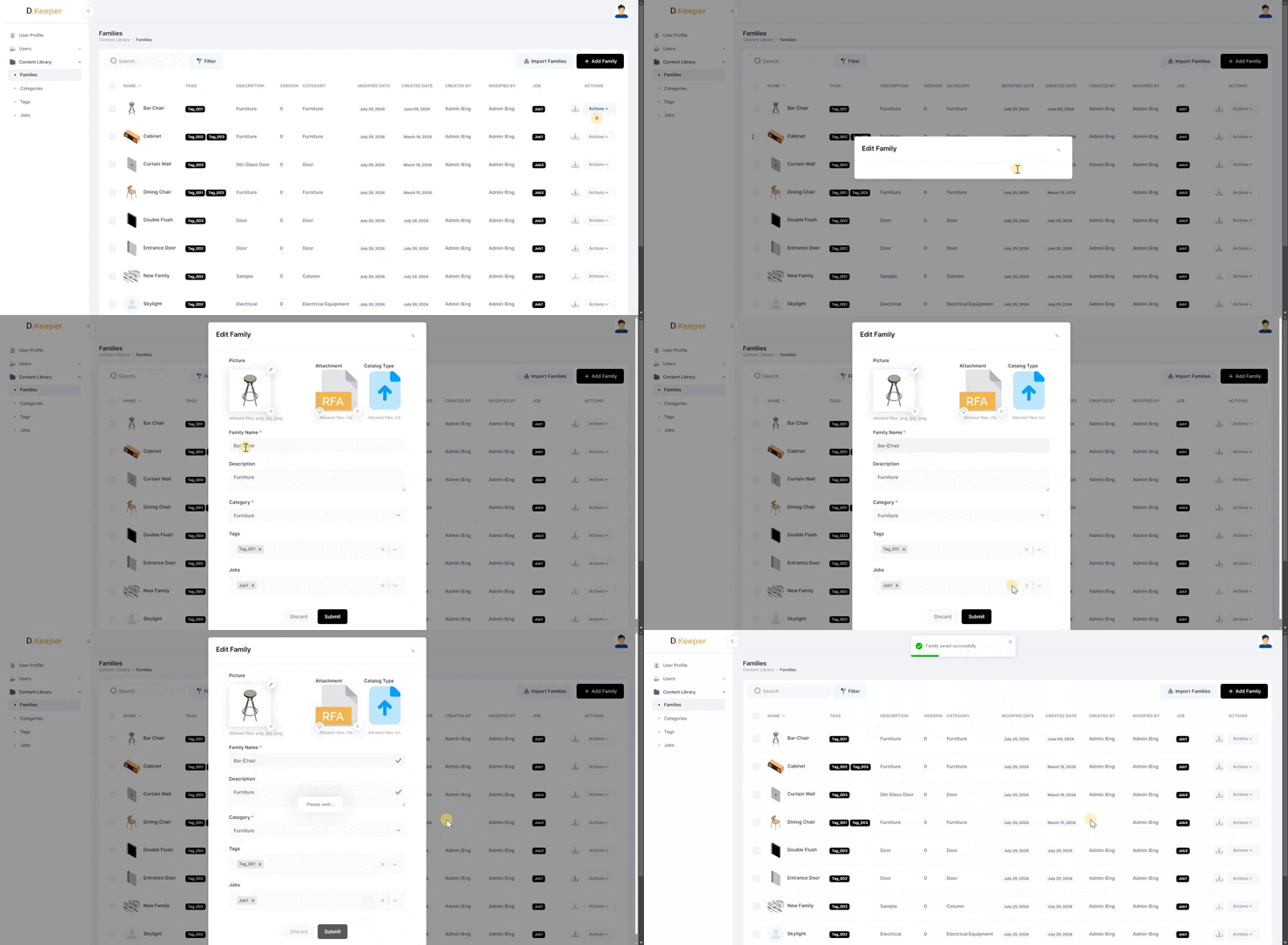
Note: the version on the image may not reflect the latest version of DiKeeper Application.
Remove Family
Click on the “Actions” button in the last column and select the “Remove” option, or select several families with the checkbox and click on “Delete Selected”.
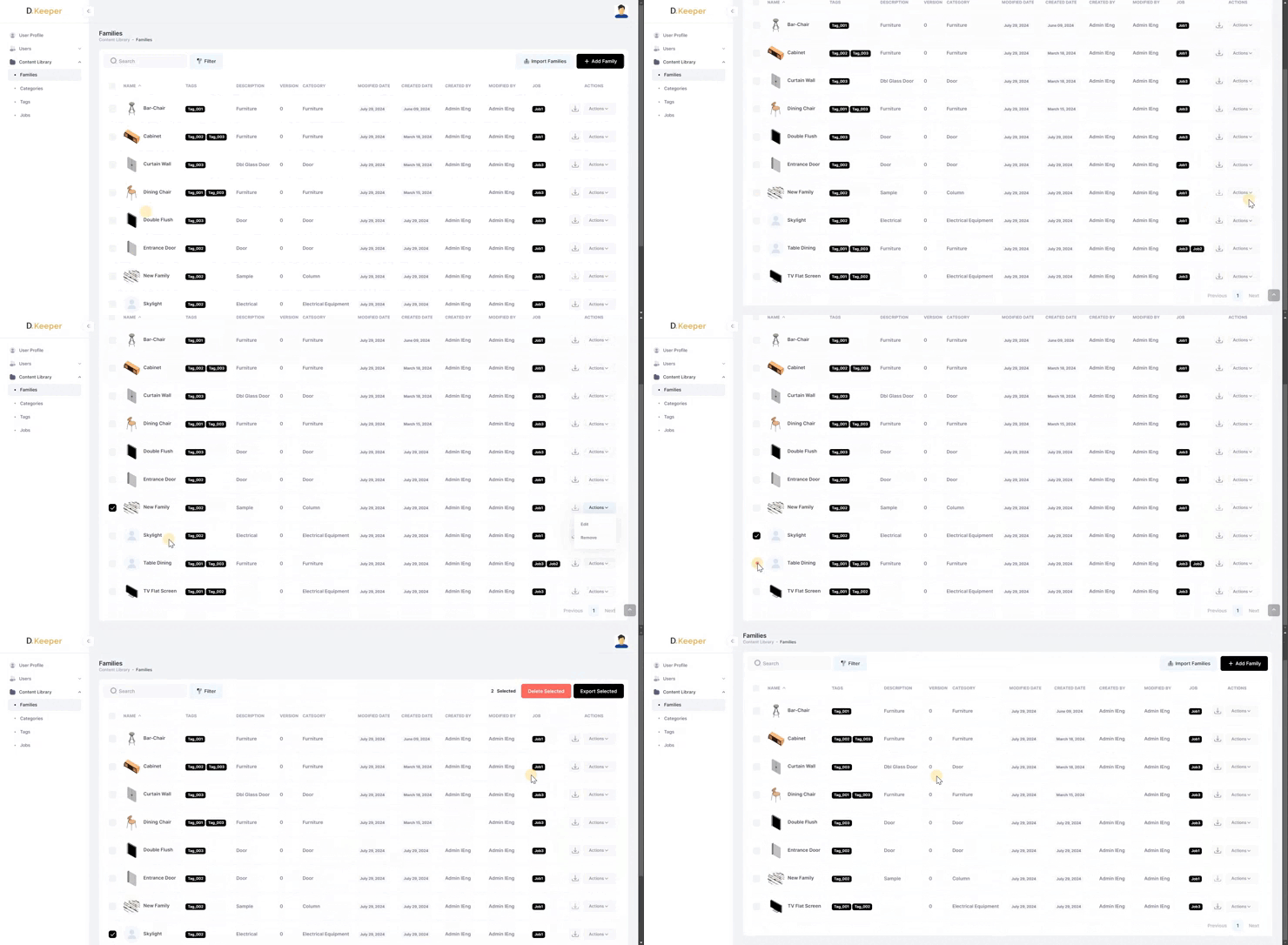
Note: the version on the image may not reflect the latest version of DiKeeper Application.
Download Family
Next to the “Actions” button, click to download the current family.
# Note:
This button is only available if there is a rfa. file attached to the family.
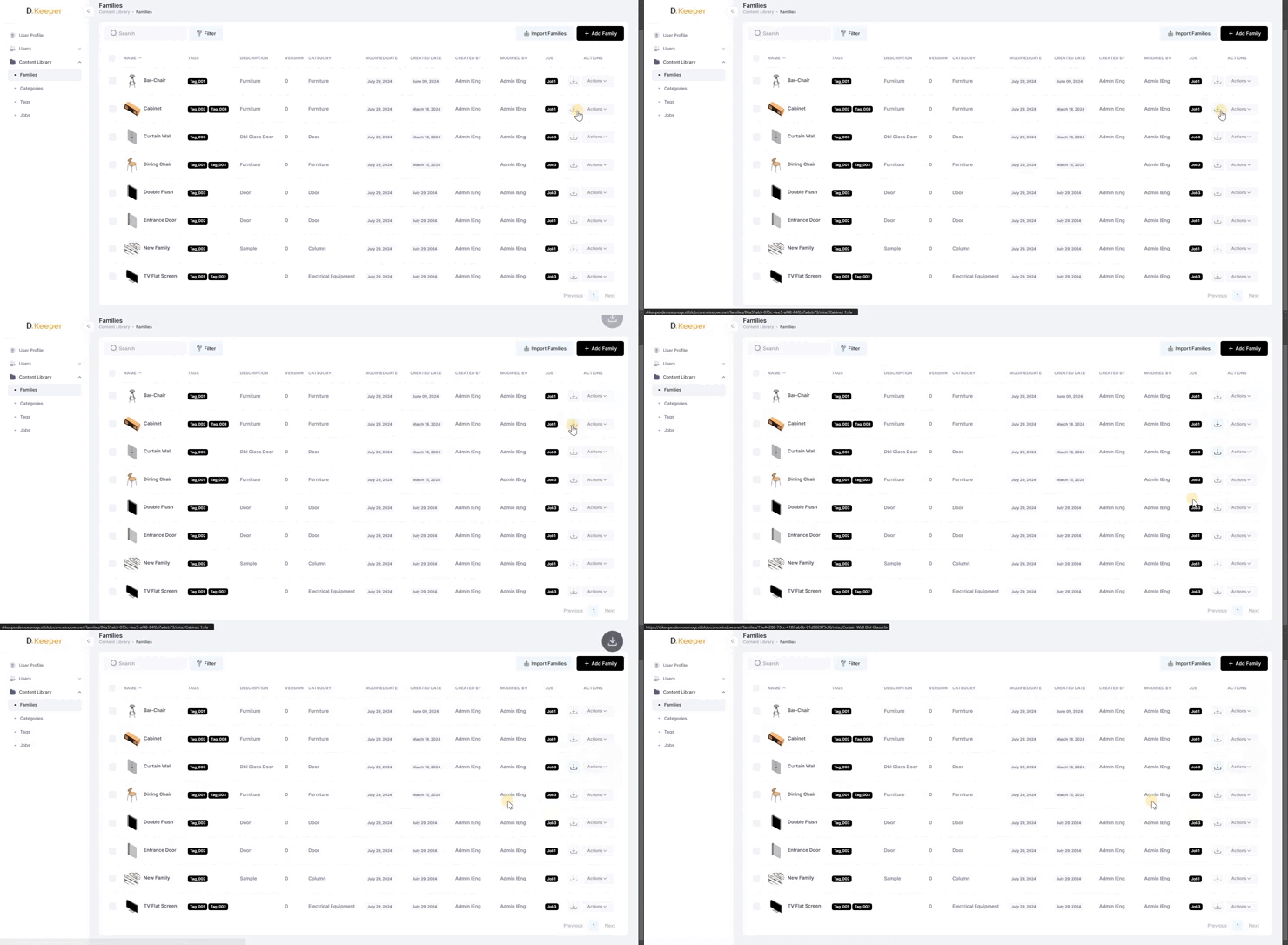
Note: the version on the image may not reflect the latest version of DiKeeper Application.
Categories
Manage the available categories.
Search Bar
Use the search bar to search by specifics categories.
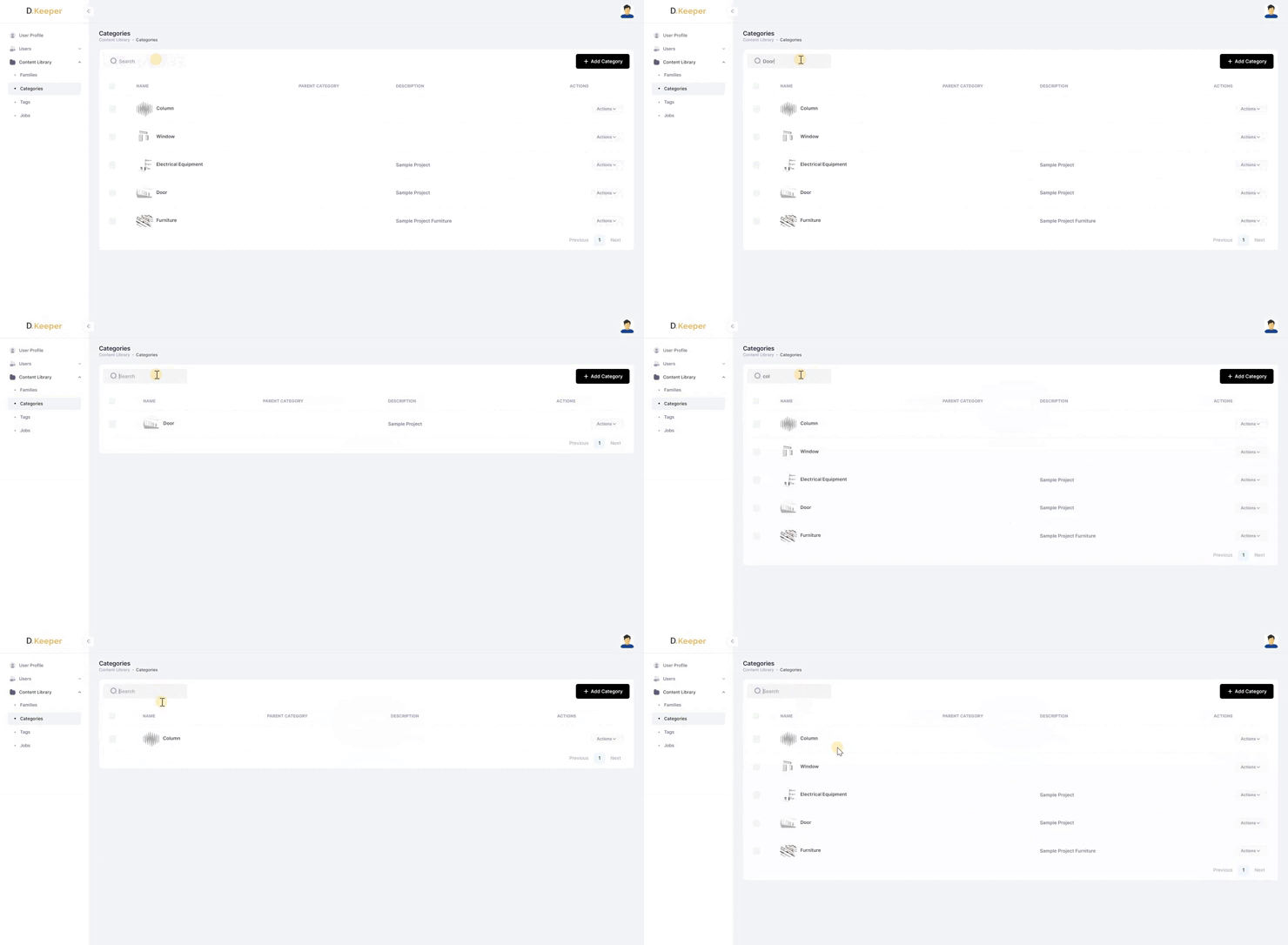
Note: the version on the image may not reflect the latest version of DiKeeper Application.
Add Category
Click to add a new category.
- Add an image (allowed files: png, jpg and jpeg)
- Fill all the mandatory fields
- Confirm on “Submit” button.
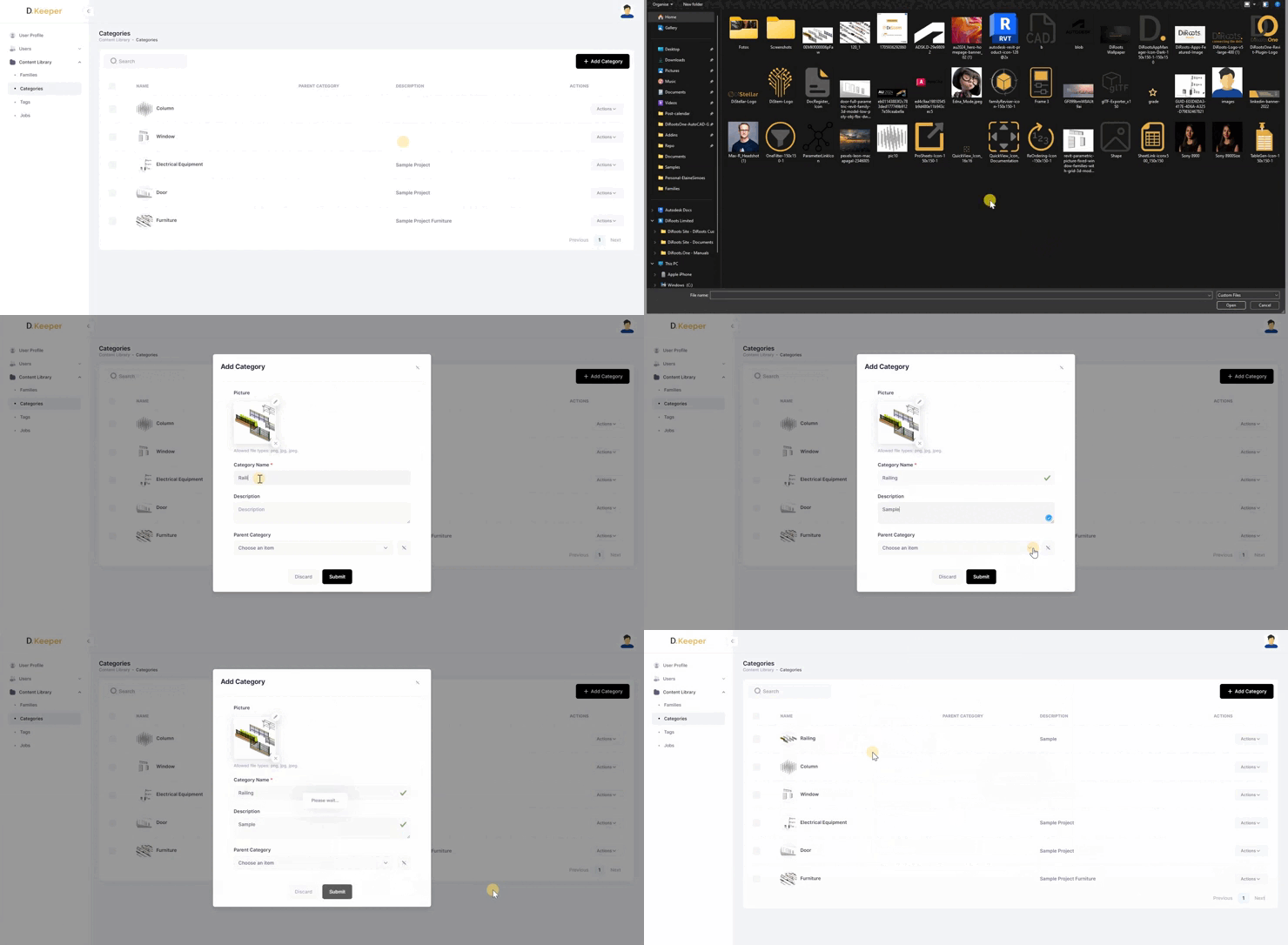
Note: the version on the image may not reflect the latest version of DiKeeper Application.
Edit Category
- Click on the “Actions” button in the last column and select the “Edit” option.
- When you open the Category information, edit the desired fields and click on “Submit” to save the changes.
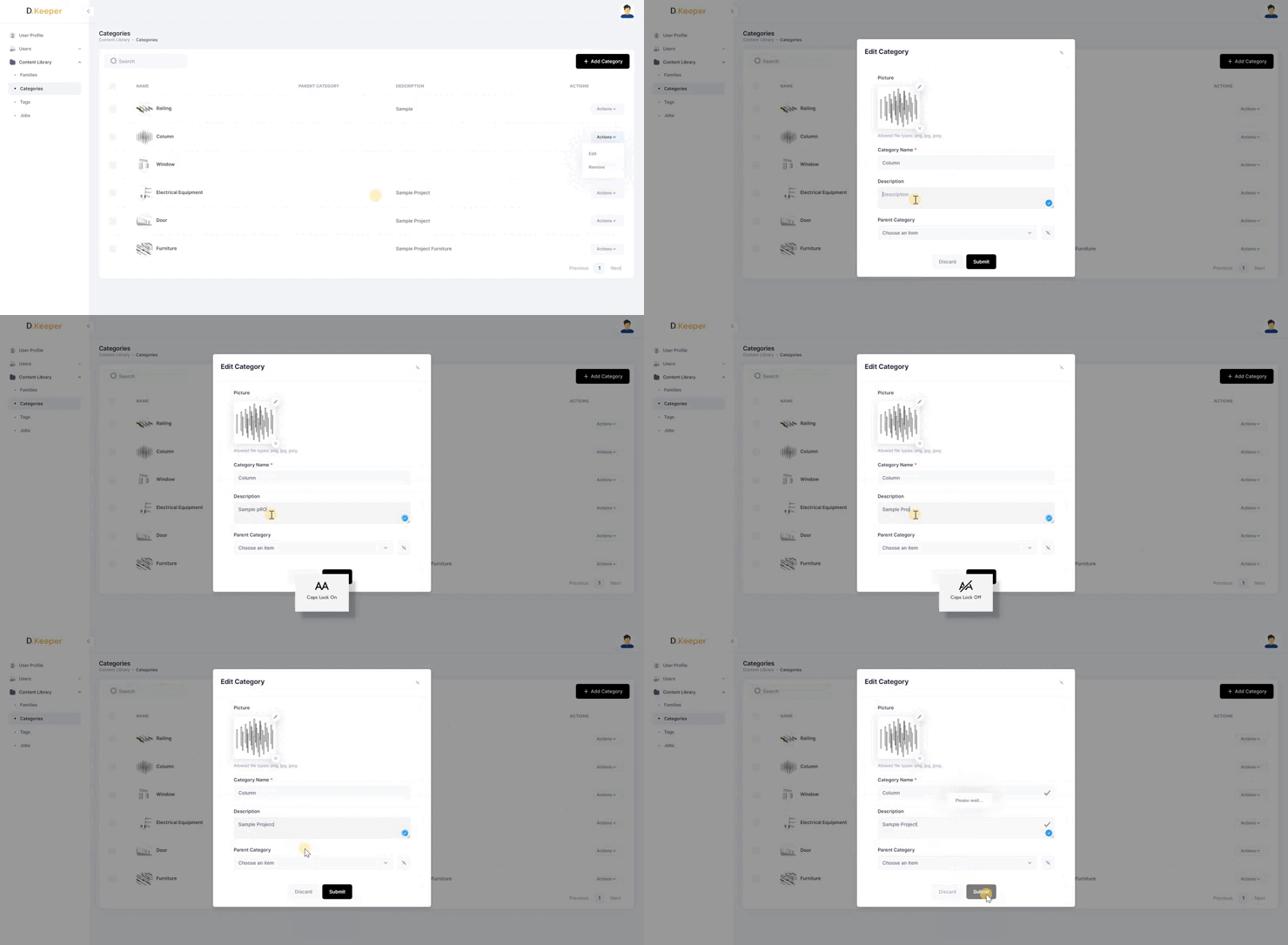
Note: the version on the image may not reflect the latest version of DiKeeper Application.
Remove Category
Click on the “Actions” button in the last column and select the “Remove” option, or select several categories with the checkbox and click on “Delete Selected”.
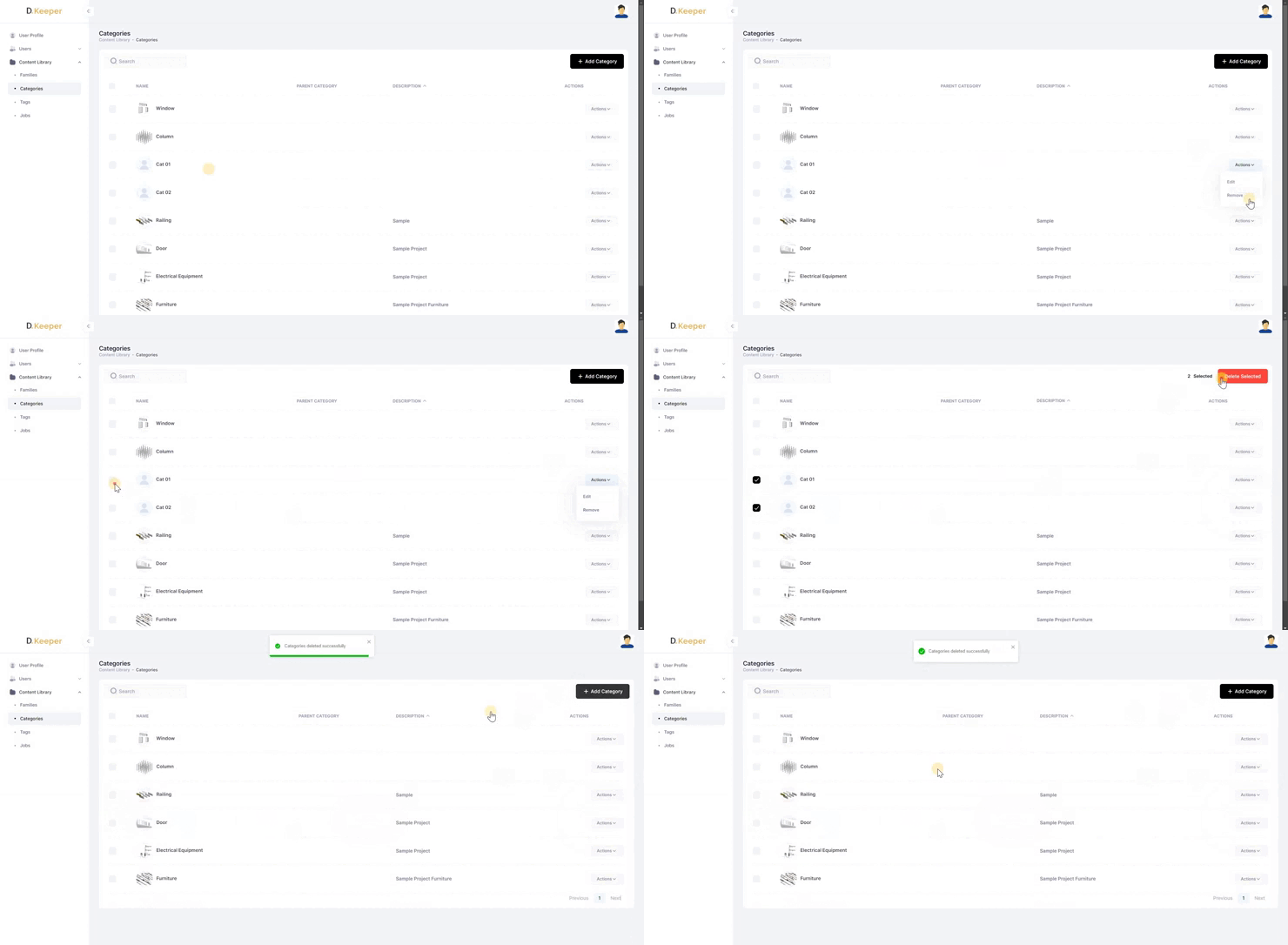
Note: the version on the image may not reflect the latest version of DiKeeper Application.
Tags
Manage the Tags to use in your projects.
Search Bar
Use the search bar to search by specifics Tags.
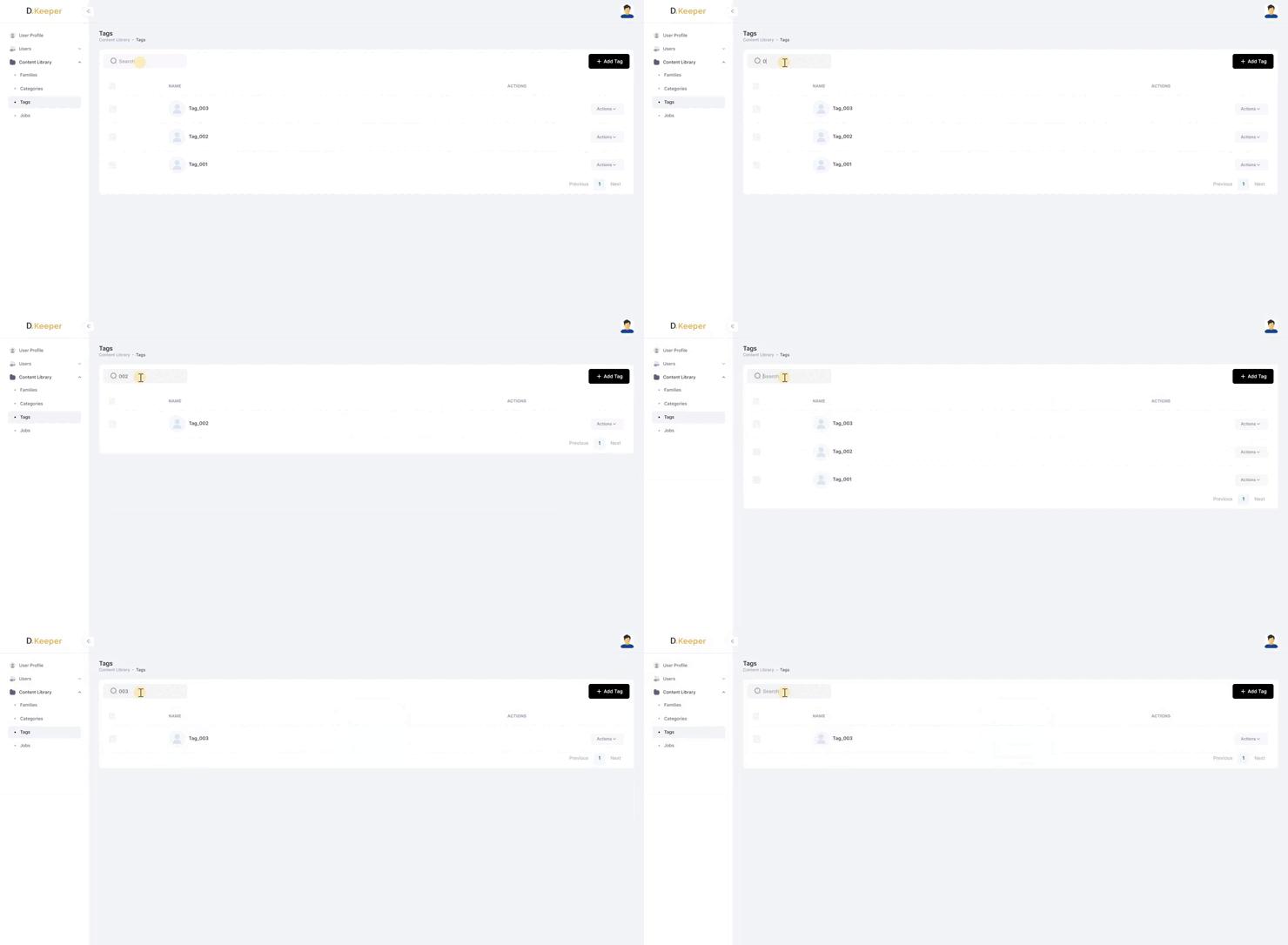
Note: the version on the image may not reflect the latest version of DiKeeper Application.
Add Tag
Click to add a new Tag, and enter a Tag name.
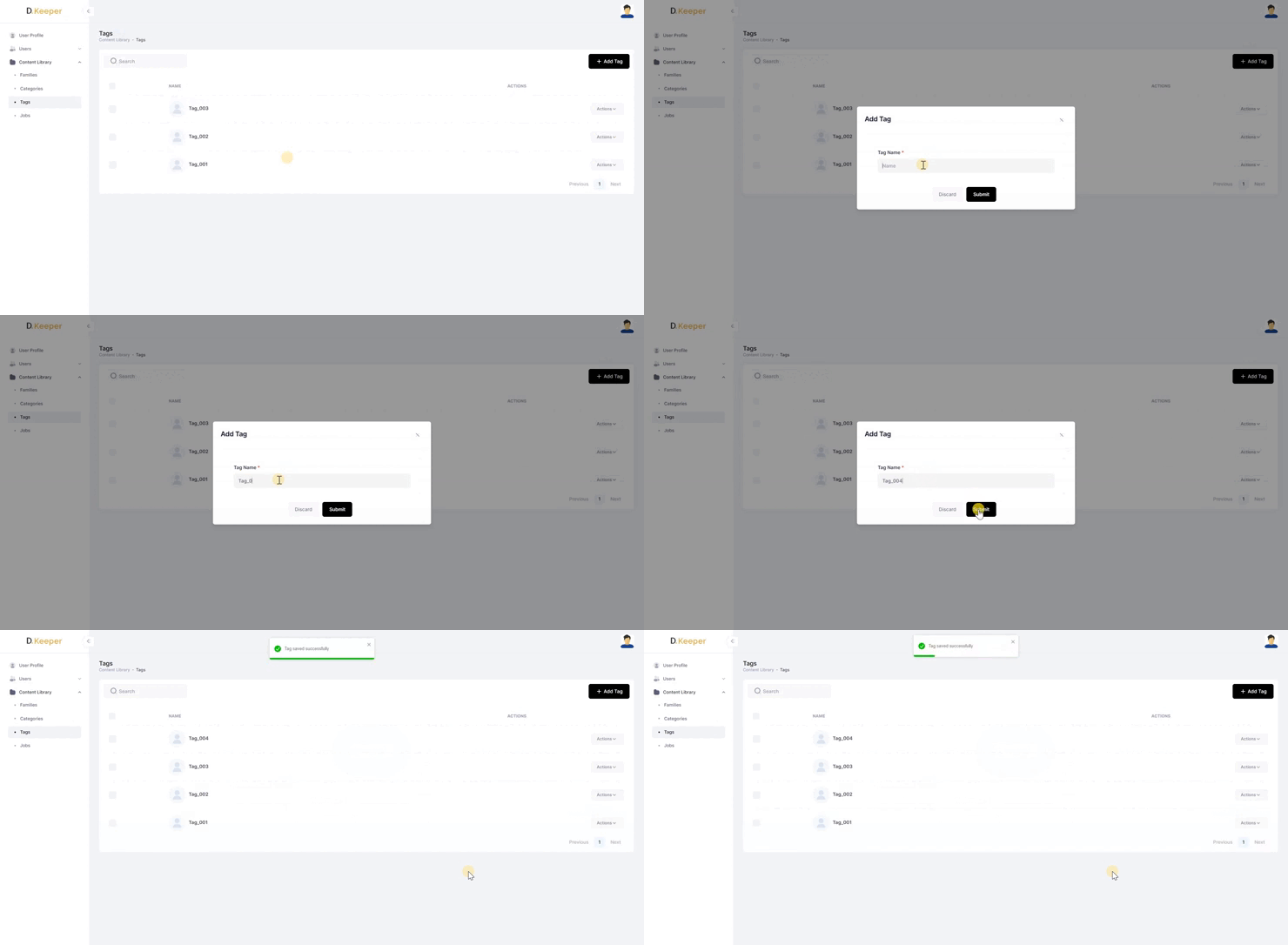
Note: the version on the image may not reflect the latest version of DiKeeper Application.
Edit Tag
- Click on the “Actions” button in the last column and select the “Edit” option.
- When you open the Tag information, edit the Tag and click on “Submit” to save the changes.
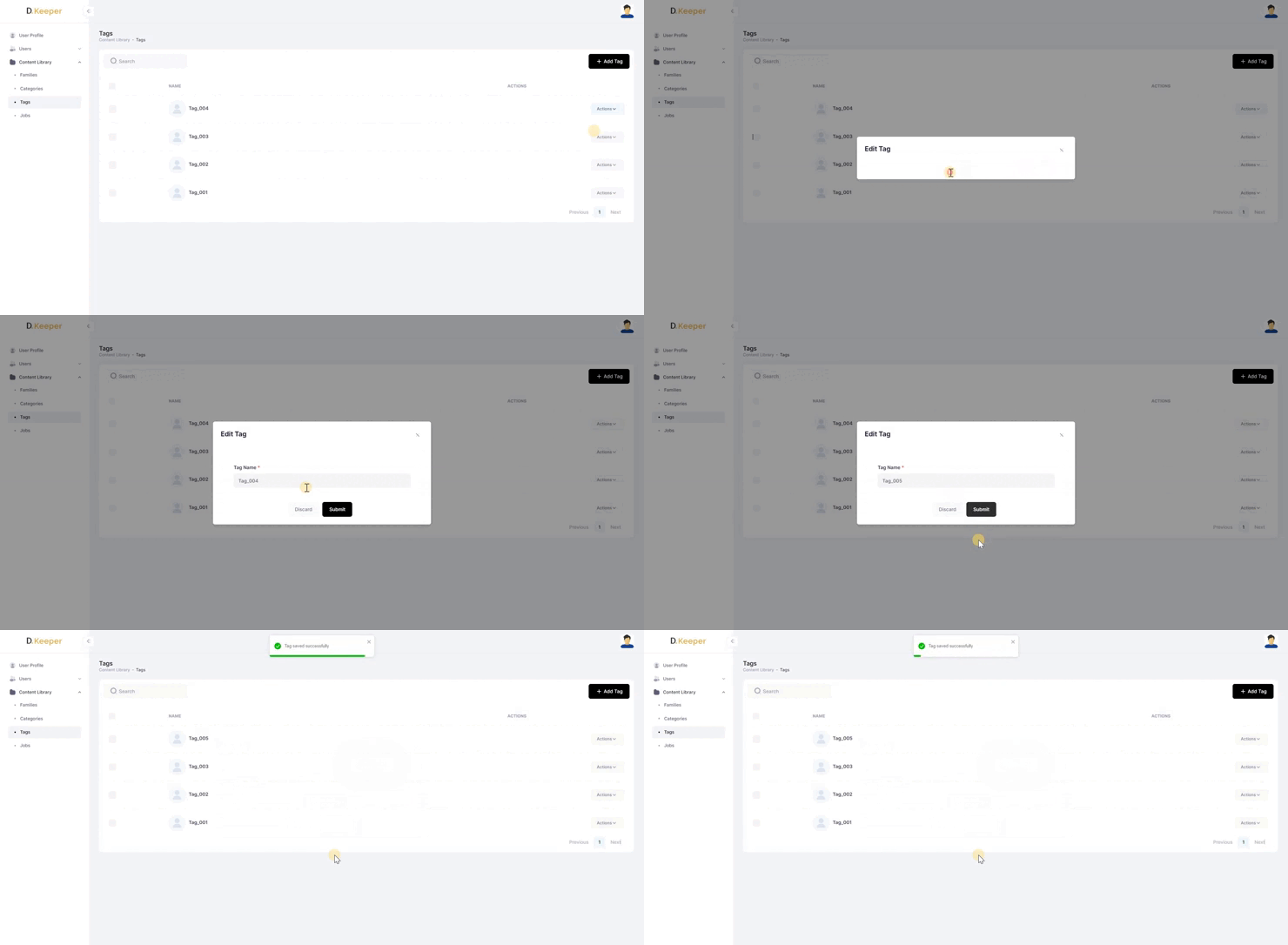
Note: the version on the image may not reflect the latest version of DiKeeper Application.
Remove Tag
Click on the “Actions” button in the last column and select the “Remove” option, or select several Tags with the checkbox and click on “Delete Selected”.
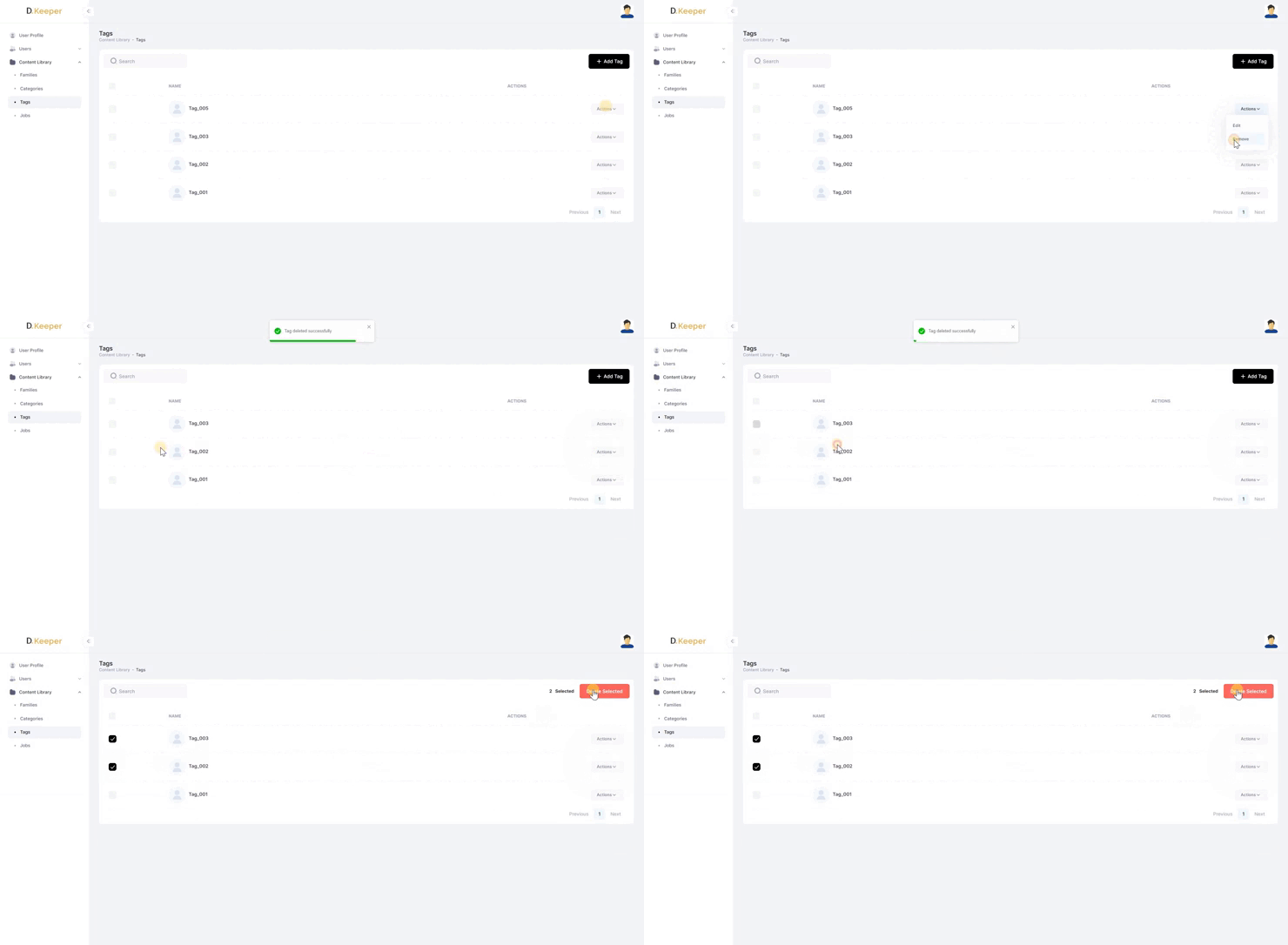
Note: the version on the image may not reflect the latest version of DiKeeper Application.
Job
Search Bar
Use the search bar to search by specifics Jobs.
Add Job
Click to add a new Tag, and enter a Job name.
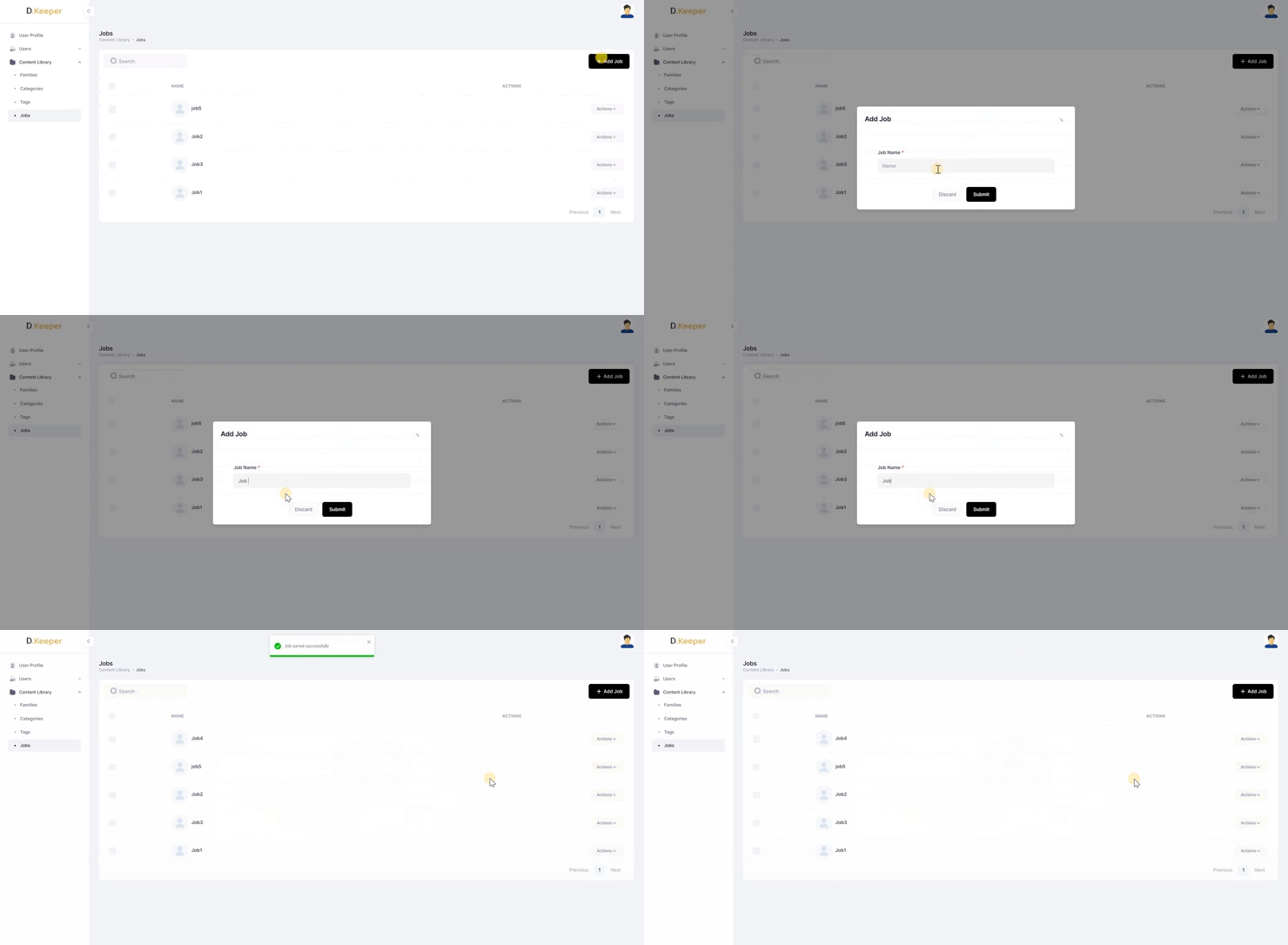
Note: the version on the image may not reflect the latest version of DiKeeper Application.
Edit Job
- Click on the “Actions” button in the last column and select the “Edit” option.
- When you open the Tag information, edit the Job and click on “Submit” to save the changes.
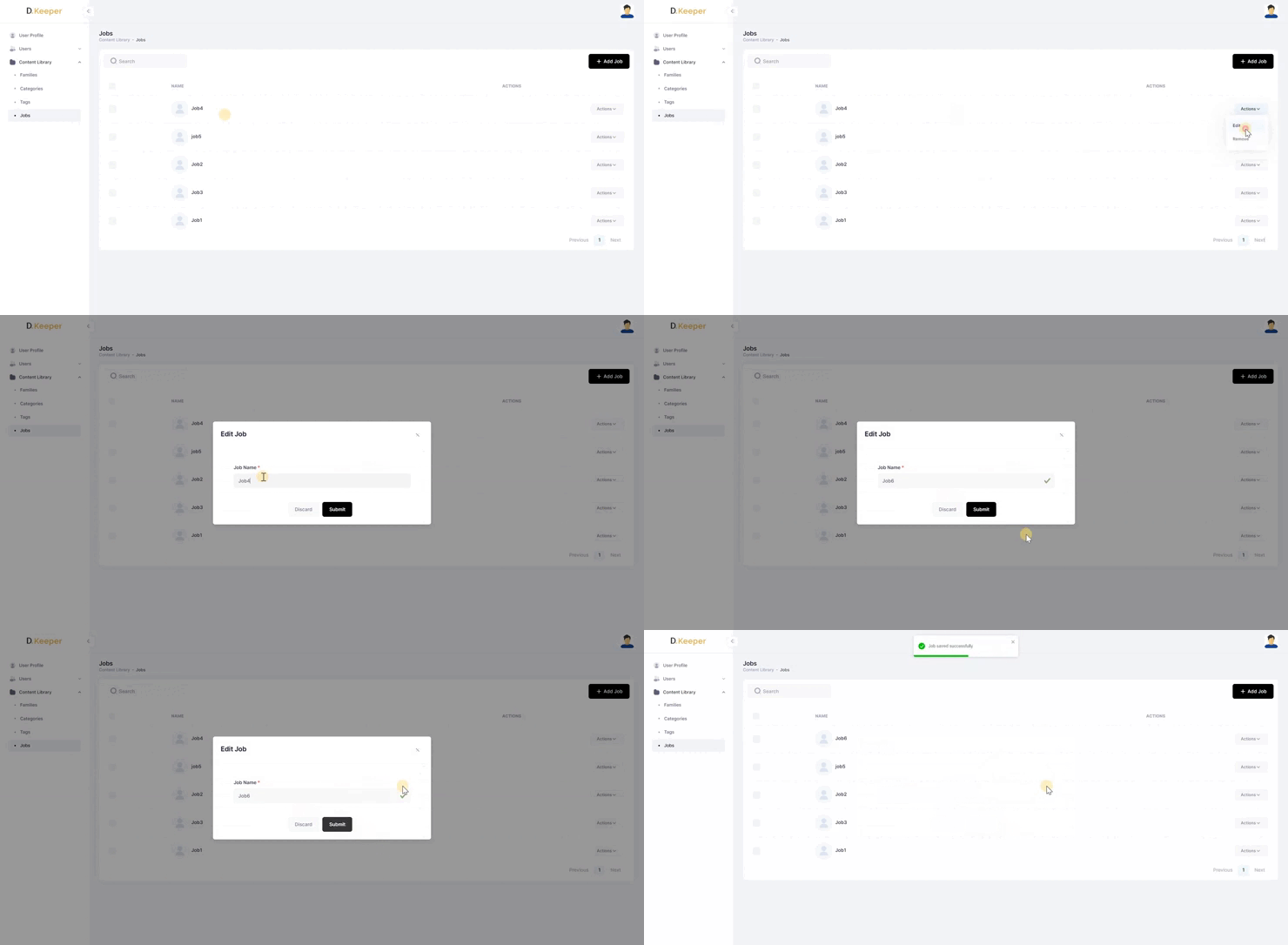
Note: the version on the image may not reflect the latest version of DiKeeper Application.
Remove Job
Click on the “Actions” button in the last column and select the “Remove” option, or select several Tags with the checkbox and click on “Delete Selected”.
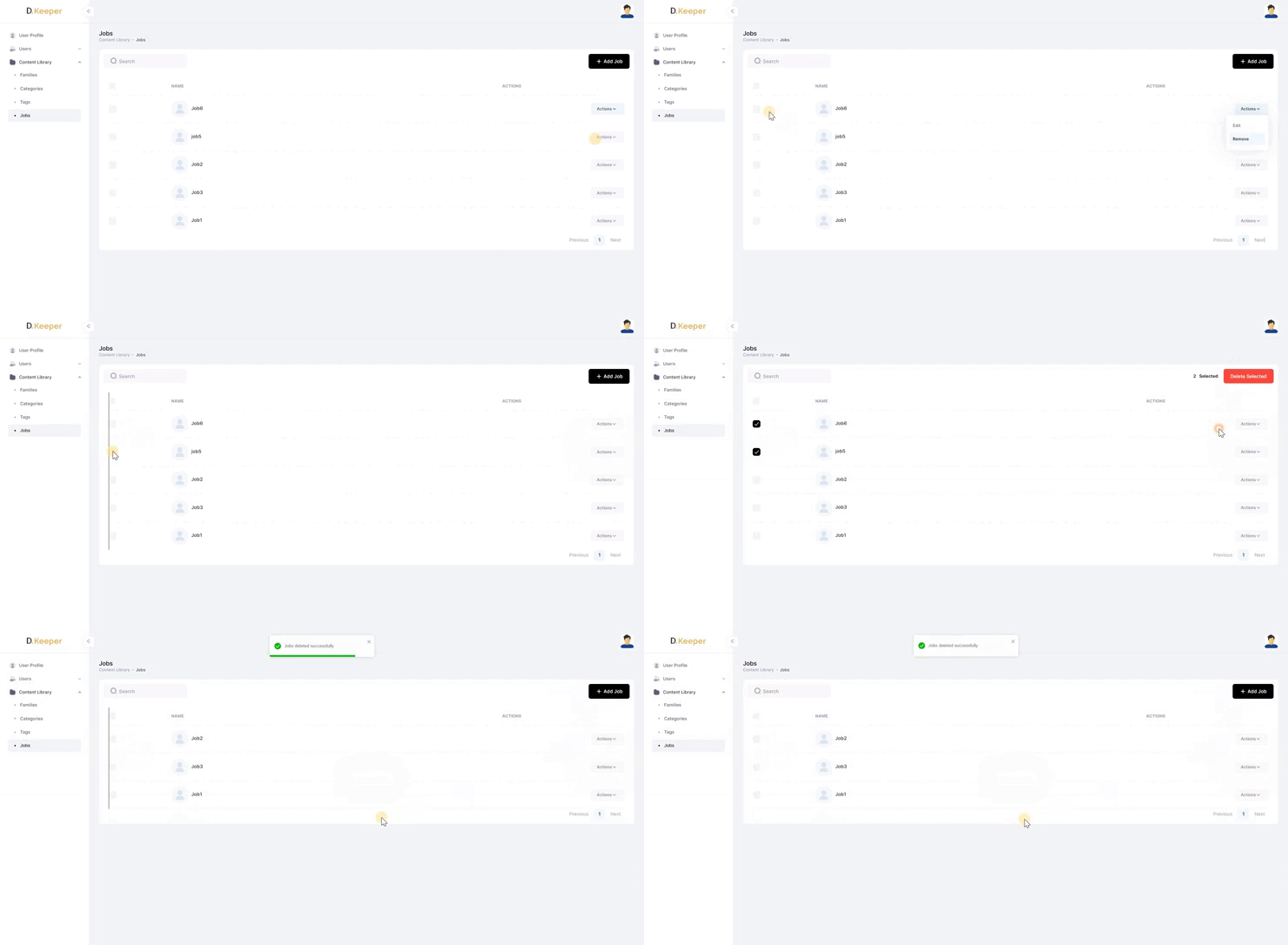
Note: the version on the image may not reflect the latest version of DiKeeper Application.