DiKeeper
A powerful Revit content browser plugin to manage users and content (e.g., Revit Families), complemented by a SaaS modular web app to manage users and Content Library.
Table of contents
DiKeeper Content Browser
The first step when opening the DiKeeper plugin is to log in to start using the tool.
- Click on the “Login” button
- Enter your email and password
- Click on Sign in to confirm.
# Note:
Click on the “Logout” button to disconnect your user from the plugin.
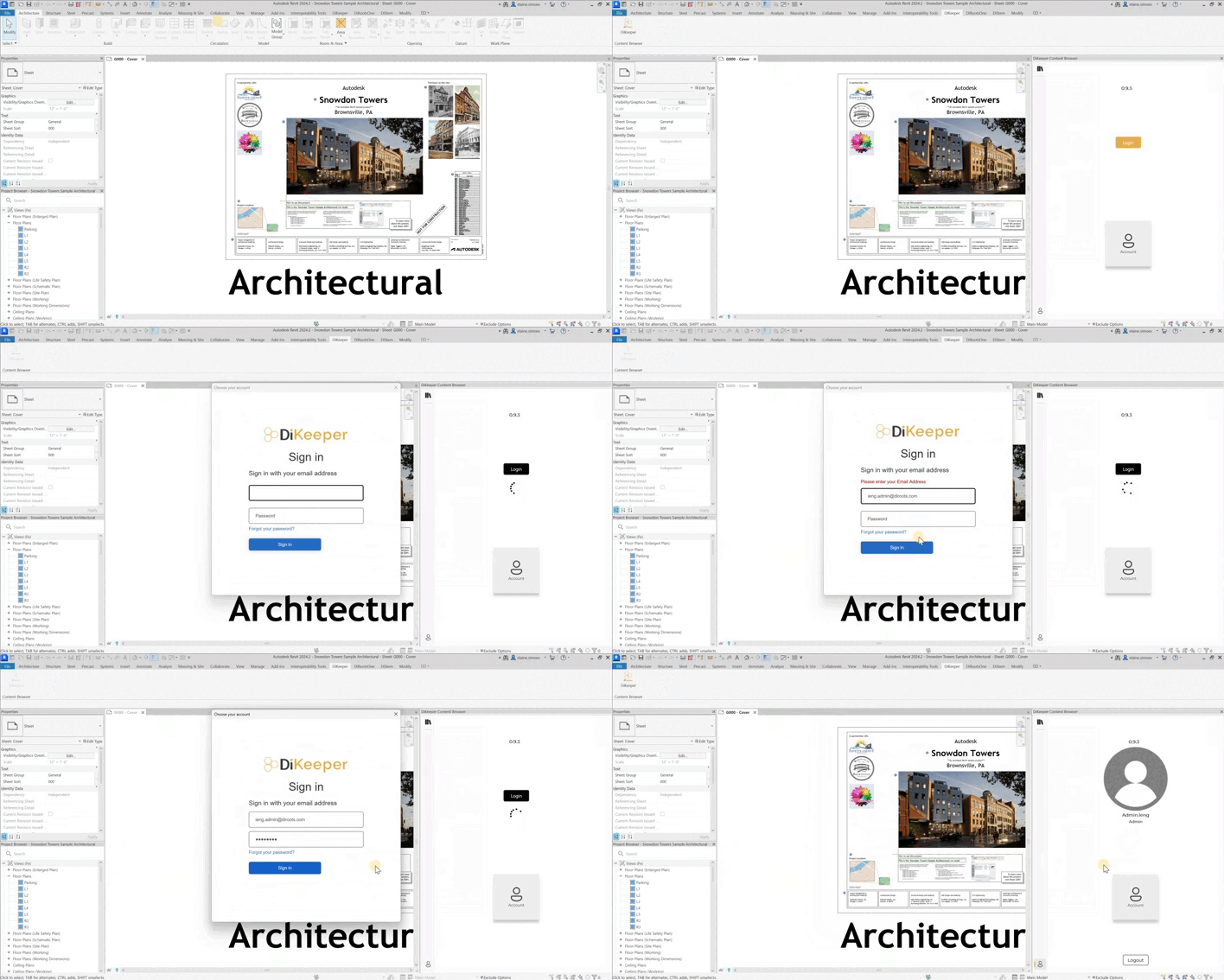
Note: the version on the image may not reflect the latest version of DiKeeper Plugin.
Library
Click on the “Library” button in the left sidebar to start using the tool. Note that all the families in the web application’s Content Library will be available in this tab.
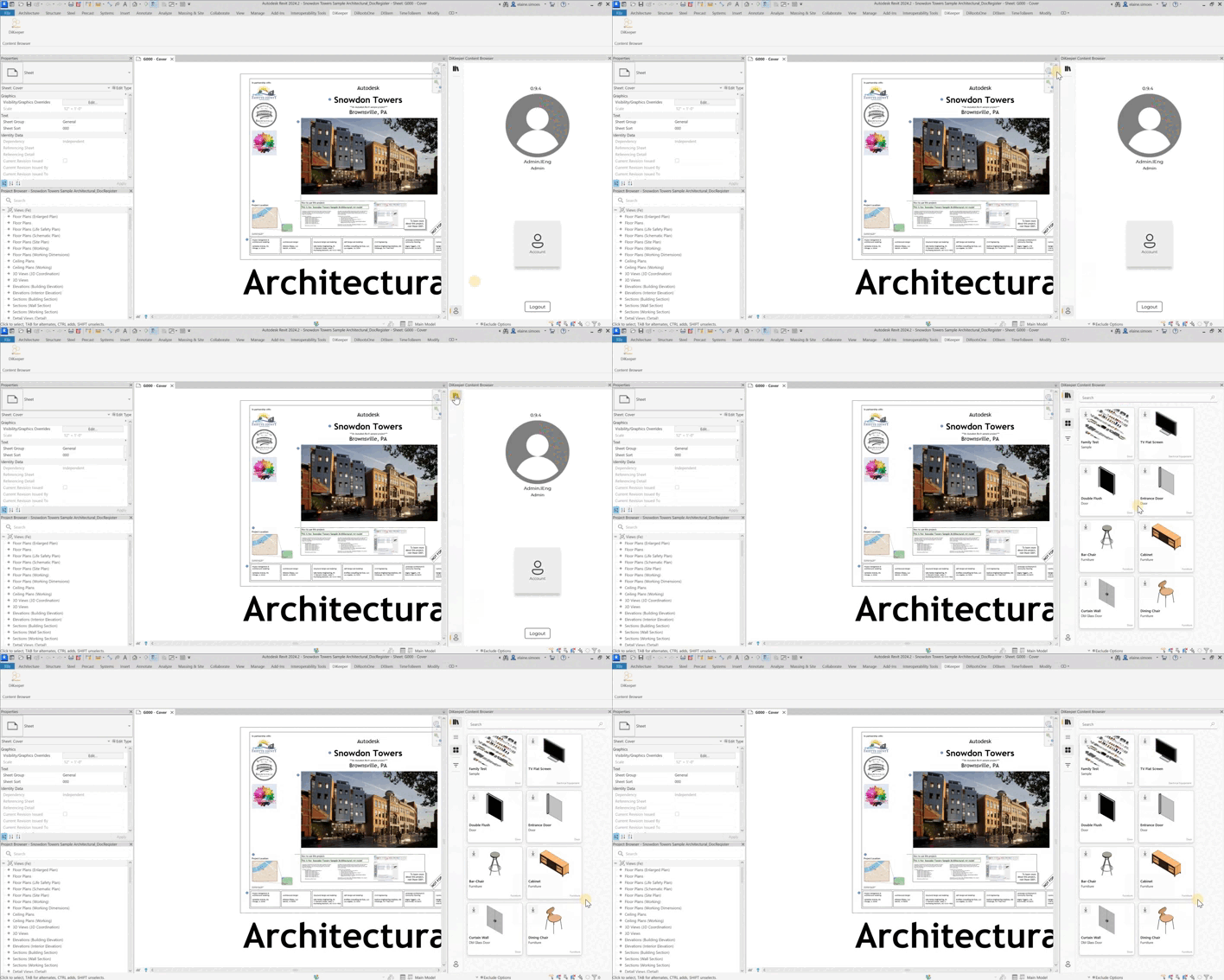
Note: the version on the image may not reflect the latest version of DiKeeper Plugin.
Search bar
Use the search bar to find specific families.
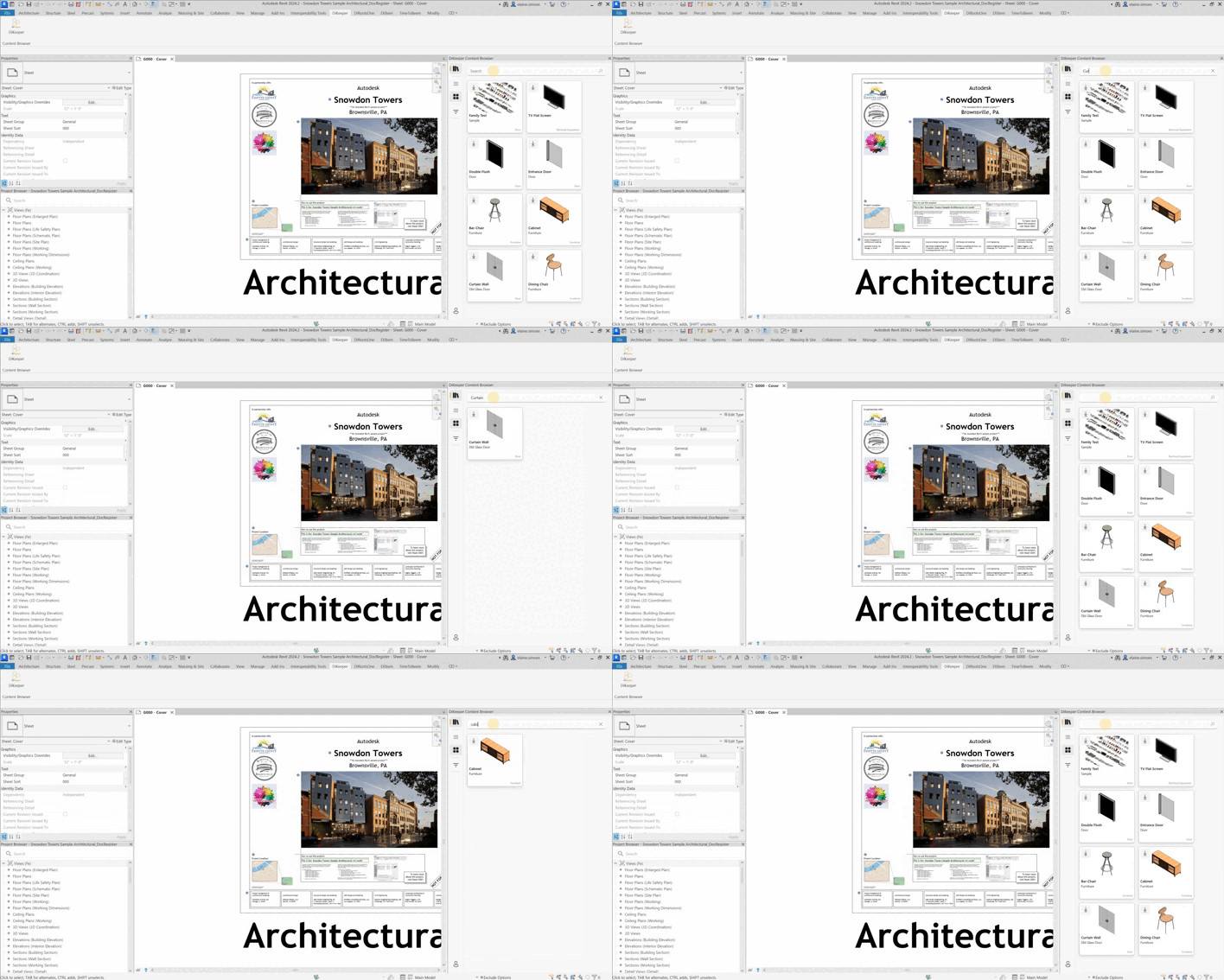
Note: the version on the image may not reflect the latest version of DiKeeper Plugin.
Visualization of families
You can choose to view the list of families in card format or in list format.
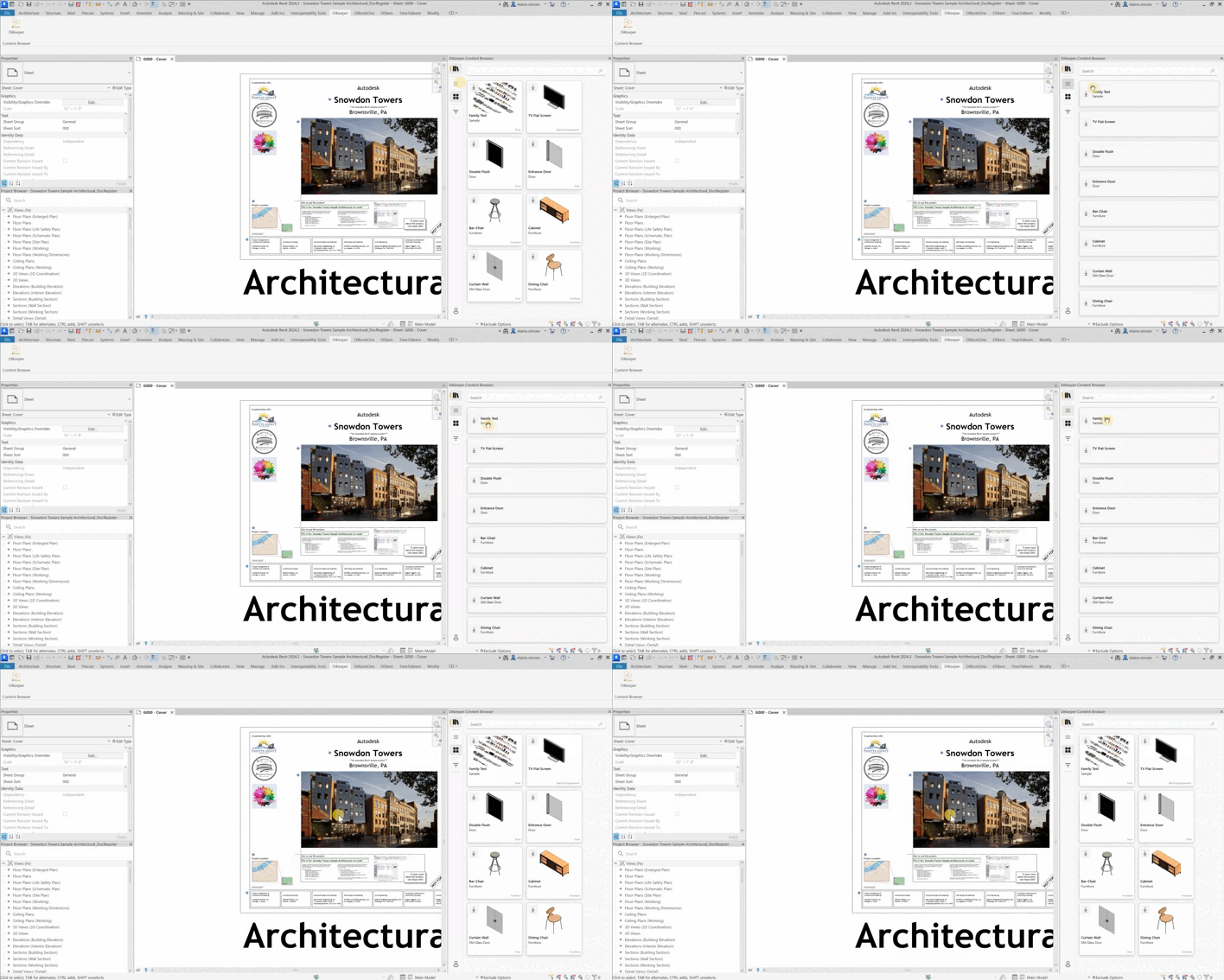
Note: the version on the image may not reflect the latest version of DiKeeper Plugin.
Filter
Click on the “Filter” button and filter families by Categories, Tags and Jobs. Simply select them in the checkbox and click on “Apply” filter.
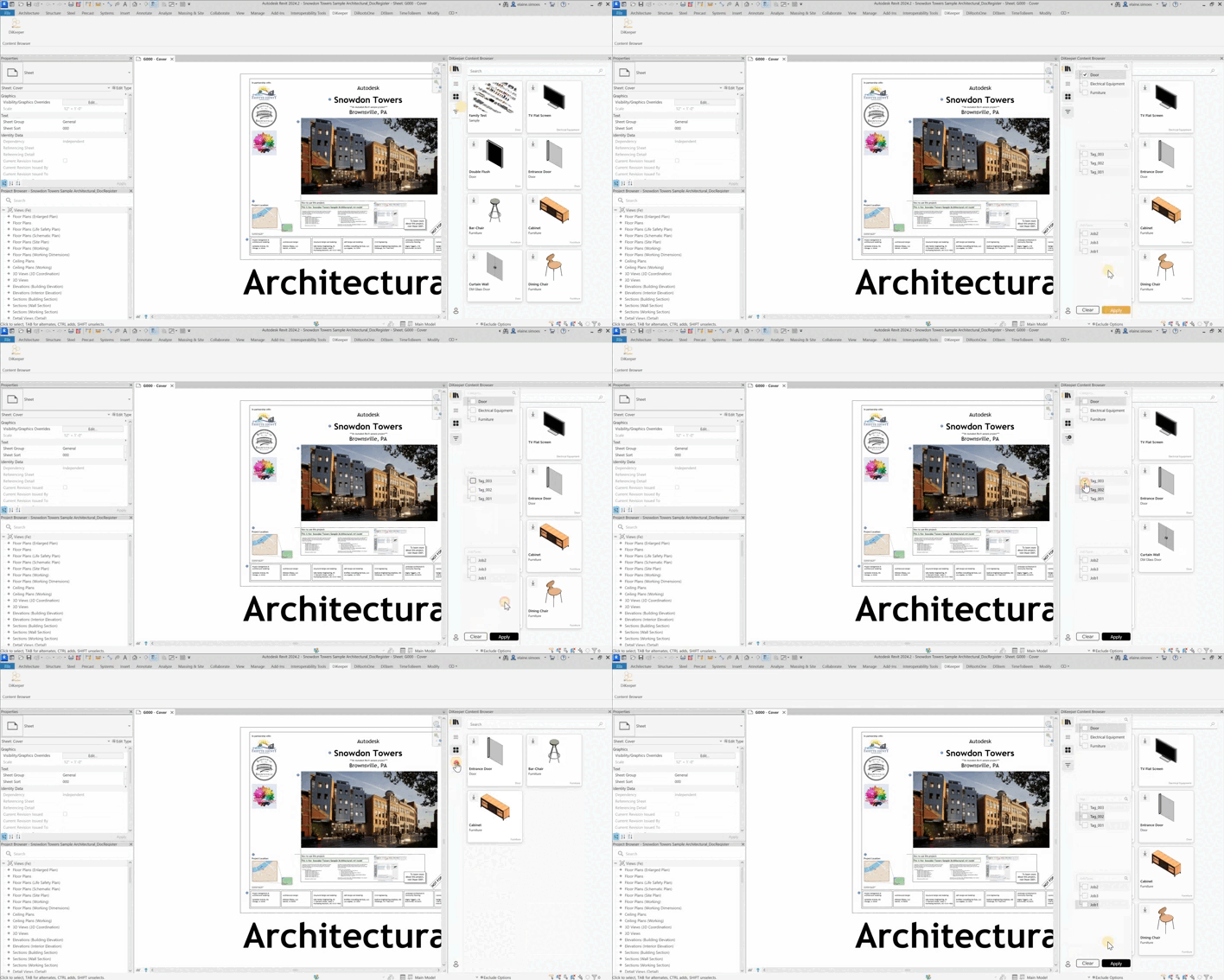
Note: the version on the image may not reflect the latest version of DiKeeper Plugin.
Load Family
Loads the families contained in the DiKeeper library into the current project.
- Click on the “Load” button to add the family to the current project.
- Click and drag the family into your project to add it directly to the ideal position.
# Note:
- Note that added families will have a status symbol added (done).
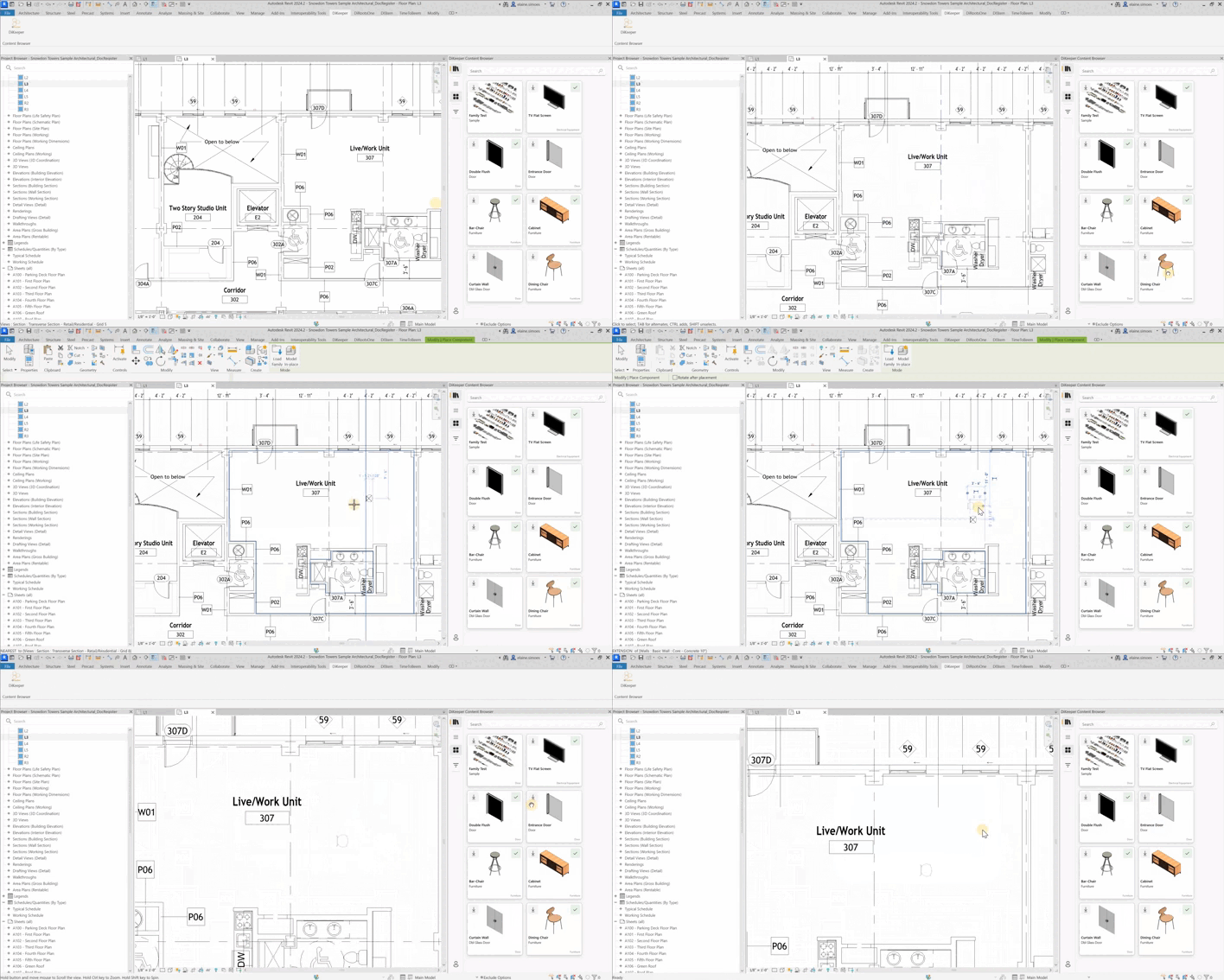
Note: the version on the image may not reflect the latest version of DiKeeper Plugin.